
Appearance
Git基础教程
Git概述
Git是一个免费的、开源的分布式版本控制系统,可以快速高效的处理从小型到大型的各种项目。
Git易于学习,占地面积小,性能极快。它具有廉价的本地库,方便的暂存区域和多个工作流分支等特性。其性能优于Subversion、CVS、Perforce和ClearCase等 版本控制工具。
分布式版本控制工具VS集中式版本控制工具。
版本控制工具
1、集中式版本控制工具
CVS、SVN(Subversion)、VSS……
2、分布式版本控制工具
Git、Mercurial、Bazaar、Darcs……
Git工具机制
工作区(写代码)->git add->暂存区(临时存储)->git commit->本地库(历史版本)->pull->远程库
Git和代码托管中心
代码托管中心是基于网络服务器的远程代码仓库,一般我们简单称为远程库。
1、局域网
GitLab
2、互联网
Github(外网)Gitee码云(国内网站)
Git安装
查看GNU协议,可以直接点击下一步。
Git的安装要选择非中文没有空格的目录
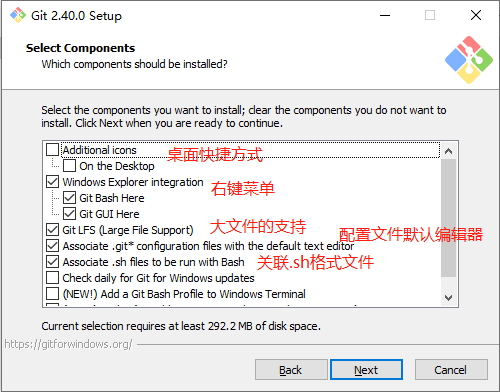
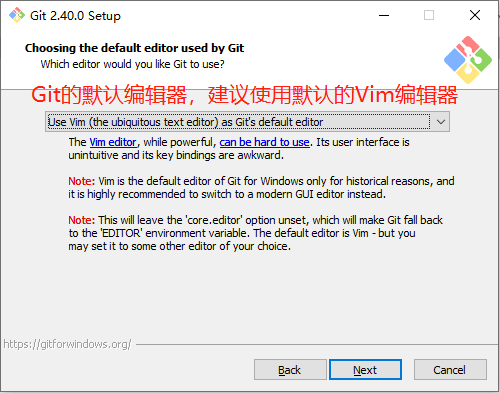
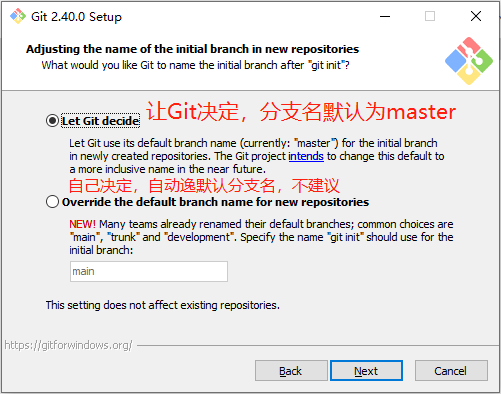
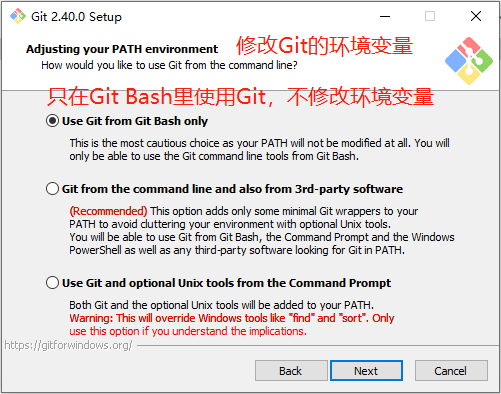
这里推荐选择默认的第二个,我初学的时候选择了第一个,看自己情况,我这选择第一个就得打开Git带的Bash才能使用,默认的是可以之间在CMD和Powershell中就可以直接使用。下面除了路径其他都推荐默认的就行了。
Git常用命令
| 命令名称 | 作用 |
|---|---|
| git config --global user.name 用户名 | 设置用户签名 |
| git config --global user.email 邮箱 | 设置用户签名 |
| git init | 初始化本地库 |
| git status | 查看本地库状态 |
| git add 文件名 | 添加到暂存区 |
| git commit -m "日志信息" 文件名 | 提交到本地库 |
| git reflog | 查看历史记录 |
| git reset --hard 版本号 | 版本穿梭 |
设置用户签名
签名的作用是区分不同操作者身份。用户的签名信息在每一个版本的提交信息中能够看到,以此确认本次提交是谁做的。Git首次安装必须设置以下用户签名,否则无法提交代码。
注意:这里设置用户签名和将来登录GitHub(或其他代码托管中心)的账号没有任何关系。
这里我在centos7上安装了git来使用。
bash
git --version
git config --global user.name ggt
git config --global user.email ggt@pqpq.com邮箱可以是虚拟邮箱,不会去验证邮箱。
bash
cat ~/.gitconfig
[user]
        name = ggt
email = ggt@pqpq.com以上输出内容是验证用户签名成功了。
初始化本地库
在初始化本地库之前,需要先cd到项目目录中。
bash
mkdir git && cd git
bashgit initgit初始化之后会在项目目录中生成 .git 的文件。
查看本地库状态
bash
bashgit status
On branch master

No commits yet

nothing to commit (create/copy files and use "git add" to track)On branch master:当前本地库在master分支。No commits yet:目前还没有提交过东西。nothing to commit:没有什么东西需要提交。
bash
bashcat hello.txt
hello git!
hello git!
hello git!
hello git!
hello git!
hello git!
hello git!
hello git!
hello git!

bashgit status
On branch master

No commits yet

Untracked files:
  (use "git add <file>..." to include in what will be committed)
	hello.txt

nothing added to commit but untracked files present (use "git add" to track)Untracked files:有一些文件在Git仓库还没有被跟踪。
添加暂存区
bash
bashgit add hello.txt

bashgit status
On branch master

No commits yet

Changes to be committed:
  (use "git rm --cached <file>..." to unstage)
new file: hello.txtChanges to be committed:检测到暂存区有新文件。
此时hello.txt就已经在暂存区了,这时候如果不想要了可以使用以下命令删除暂存区这个hello.txt:
bash
bashgit rm --cached hello.txt提交本地库
git commit -m "日志信息" 文件名
bash
bashgit commit -m "first commit" hello.txt
[master (root-commit) 2266eb8] first commit
 1 file changed, 16 insertions(+)
create mode 100644 hello.txtmaster:当前所在的分支名称。root-commit:表示这是一个根提交,即在这个分支上的第一个提交。2266eb8:是该提交的哈希值。1 file changed, 16 insertions:1个文件被更改,16行代码被添加。create mode 100644 hello.txt:hello.txt文件已经创建并添加到仓库中;create mode表示一个新创建的文件;100644:该文件的权限,即普通文件。
bash
bashgit status
On branch master
nothing to commit, working tree clean

bashgit reflog
2266eb8 (HEAD -> master) HEAD@{0}: commit (initial): first commit

bashgit log
commit 2266eb82d052d710c73ed69338946aa6d5d774ad (HEAD -> master)
Author: ggt <ggt@pqpq.com>
Date:   Tue Apr 25 22:59:36 2023 +0800

first commit修改文件
bash
bashcat hello.txt
hello git! 2222222222
hello git!
hello git!
hello git!
hello git!
hello git!
hello git!
hello git!
hello git!
hello git!
hello git!
hello git!
hello git!
hello git!
hello git!
hello git!此时查看本地库状态,提示被修改了
bash
bashgit status
On branch master
Changes not staged for commit:
  (use "git add <file>..." to update what will be committed)
  (use "git restore <file>..." to discard changes in working directory)
	modified:   hello.txt

no changes added to commit (use "git add" and/or "git commit -a")

bashgit add hello.txt

bashgit status
On branch master
Changes to be committed:
  (use "git restore --staged <file>..." to unstage)
	modified:   hello.txt

bashgit commit -m "second commit" hello.txt
[master 6d75c5f] second commit
 1 file changed, 1 insertion(+), 1 deletion(-)

bashgit status
On branch master
nothing to commit, working tree clean历史版本
1、查看历史版本
git reflog查看版本信息git log查看版本详细信息
bash
bashgit reflog
6d75c5f (HEAD -> master) HEAD@{0}: commit: second commit
2266eb8 HEAD@{1}: commit (initial): first commit2、版本穿梭
git reset --hard 版本号
我这是要穿梭到 first commit这个版本,这个版本的版本号为2266eb8
bash
bashgit reset --hard 2266eb8
HEAD is now at 2266eb8 first commit

bashgit reflog
2266eb8 (HEAD -> master) HEAD@{0}: reset: moving to 2266eb8
6d75c5f HEAD@{1}: commit: second commit
2266eb8 (HEAD -> master) HEAD@{2}: commit (initial): first commit

bashgit log
commit 2266eb82d052d710c73ed69338946aa6d5d774ad (HEAD -> master)
Author: ggt <ggt@pqpq.com>
Date: Tue Apr 25 22:59:36 2023 +0800此时查看文件,发现文件已经变化,回到了first commint这个版本
bash
bashcat hello.txt
hello git!
hello git!
hello git!
hello git!
hello git!
hello git!
hello git!
hello git!
hello git!
hello git!
hello git!
hello git!
hello git!
hello git!
hello git!
hello git!.git下有一个HEAD文件,这里的指针指向的是master,说明当前是在master这个分支上
bash
bashcat .git/HEAD
ref: refs/heads/master如何知道当前在master分支的哪个版本上
bash
bashcat .git/refs/heads/master
2266eb82d052d710c73ed69338946aa6d5d774adGit切换版本,底层其实是移动的HEAD指针,具体原理如下所示。
head->master->first
Git分支操作
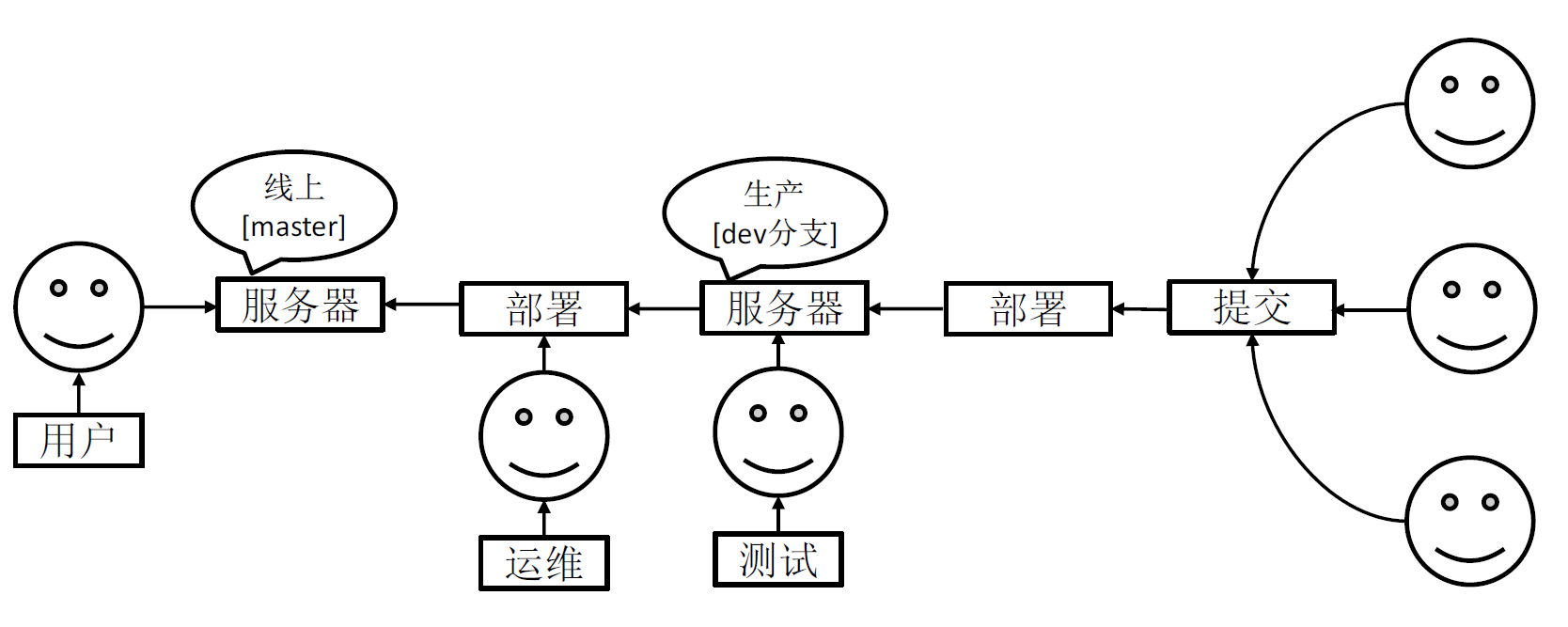
什么是分支
在版本控制过程中,同时推进多个任务,为每个任务,我们就可以创建每个任务的单独分支,使用分支意味着程序员可以把自己的工作从开发主线上分离开来,开发自己分支的时候,不会影响主线分支的运行。对于初学者而言,分支可以简单理解为副本,一个分支就是一个单独的副本。(分支底层其实也是指针引用)
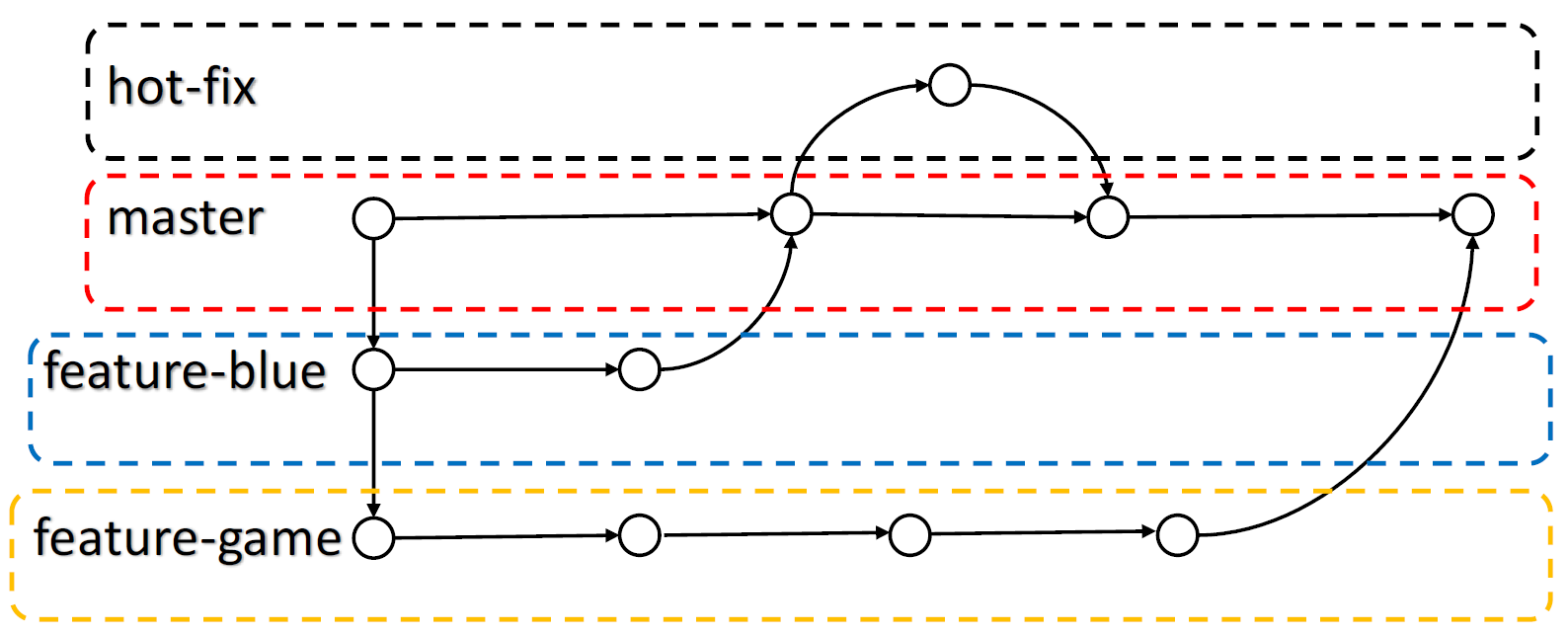
hot-fix、master、feature-blue、feture-game 就是不同的项目开发,而最终会合并都master分支上。
分支的好处
同时并行推进多个功能开发,提高开发效率。
各个分支在开发过程中,如果某一个分支开发失败,不会对其他分支有任何影响。失败的分支删除重新开始即可。
分支的操作
| 命令名称 | 作用 |
|---|---|
| git branch 分支名 | 创建分支 |
| git branch -v | 查看分支 |
| git branch -r | 查看远程仓库的分支 |
| git checkout 分支名 | 切换分支 |
| git merge 分支名 | 把指定的分支合并到当前分支上 |
1、查看分支
bash
bashgit branch -v
* master 2266eb8 first commit2、创建分支
创建分支的同时,会将主分支master的内容复制一份
bash
bashgit branch hot-fix再次查看分支,发现多了hot-fix分支,前面有*的就是当前所在的分支
bash
bashgit branch -v
  hot-fix 2266eb8 first commit
* master 2266eb8 first commit3、切换分支
bash
bashgit checkout hot-fix
Switched to branch 'hot-fix'修改hot-fix分支下的hello.txt,并提交到本地库
bash
bashcat hello.txt
hello git!
hello git!
hello git!
hello git!
hello git!
hello git!
hello git!
hello git!
hello git!
hello git!
hello git!
hello git!
hello git!
hello git!
hello git!
hello git! hot-fix test

bashgit add hello.txt

bashgit commit -m "hot-fix commit" hello.txt
[hot-fix 1f82e98] hot-fix commit
1 file changed, 1 insertion(+), 1 deletion(-)此时master分支下的hello.txt文件内容为
bash
bashcat hello.txt
hello git!
hello git!
hello git!
hello git!
hello git!
hello git!
hello git!
hello git!
hello git!
hello git!
hello git!
hello git!
hello git!
hello git!
hello git!
hello git!4、合并分支(正常)
在master分支上操作合并
bash
bashgit checkout master
Switched to branch 'master'

bashgit merge hot-fix
Updating 2266eb8..1f82e98
Fast-forward
 hello.txt | 2 +-
1 file changed, 1 insertion(+), 1 deletion(-)此时master分支下的hello.txt文件内容为
bash
bashcat hello.txt
hello git!
hello git!
hello git!
hello git!
hello git!
hello git!
hello git!
hello git!
hello git!
hello git!
hello git!
hello git!
hello git!
hello git!
hello git!
hello git! hot-fix test5、合并分支(产生冲突)
冲突产生的原因:
合并分支时,两个分支在同一个文件的同一个位置有两套完全不同的修改。Git无法替我们决定使用哪一个。必须人为决定代码内容。
修改master分支下的hello.txt,并提交到本地库
bash
bashcat hello.txt
hello git! master merge
hello git!
hello git!
hello git!
hello git!
hello git!
hello git!
hello git!
hello git!
hello git!
hello git!
hello git!
hello git!
hello git!
hello git!
hello git! hot-fix test

bashgit add hello.txt
bashgit commit -m "master merge" hello.txt
[master 10ee3b4] master merge
1 file changed, 1 insertion(+), 1 deletion(-)修改hot-fix分支下的hello.txt,并提交到本地库
bash
bashcat hello.txt
hello git!
hello git! hot-fix merge
hello git!
hello git!
hello git!
hello git!
hello git!
hello git!
hello git!
hello git!
hello git!
hello git!
hello git!
hello git!
hello git!
hello git! hot-fix test

bashgit add hello.txt
bashgit commit -m "hot-fix merge" hello.txt
[hot-fix 17e8b4e] hot-fix merge
1 file changed, 1 insertion(+), 1 deletion(-)在master分支上操作合并
bash
bashgit merge hot-fix
Auto-merging hello.txt
CONFLICT (content): Merge conflict in hello.txt
Automatic merge failed; fix conflicts and then commit the result.Auto-merging hello.txt:在合并过程中Git已经自动尝试合并对该文件的修改。
CONFLICT (content): Merge conflict in hello.txt:这是一个冲突的指示。它告诉你在合并过程中发生了冲突,并且冲突发生在hello.txt文件中。冲突类型是内容冲突,表示两个分支对同一部分代码进行了修改,并且Git无法自动解决冲突。
Automatic merge failed; fix conflicts and then commit the result.:这行消息告诉你自动合并失败。由于存在冲突,Git无法自动解决冲突。建议你手动解决冲突并提交结果。
bash
bashgit status
On branch master
You have unmerged paths.
  (fix conflicts and run "git commit")
  (use "git merge --abort" to abort the merge)

Unmerged paths:
  (use "git add <file>..." to mark resolution)
	both modified:   hello.txt

no changes added to commit (use "git add" and/or "git commit -a")You have unmerged paths.:有未合并的路径。
(fix conflicts and run "git commit"):建议性的消息,提示你需要解决冲突并执行git commit命令来完成合并操作。当在合并分支时,如果存在冲突(多个分支对同一部分代码进行了修改),你需要手动解决这些冲突并进行提交。
(use "git merge --abort" to abort the merge):另一个建议性的消息,提供了一个撤销合并操作的方法。如果你希望取消正在进行合并的操作,可以运行git merge --about命令。
Unmerged paths:下面的内容是未合并路劲的列表。
both modified: hello.txt:这是具体的冲突信息。它告诉你发生冲突的文件是hello.txt,并且该文件在合并过程中在两个分支都进行了修改。
no changes added to commit (use "git add" and/or "git commit -a"):没有进行任何变更的提交。如果你已经解决了冲突并确认无误,可以使用git add和git commit命令提交本地库。
6、合并分支(解决冲突)
当出现冲突时,在master分支上相应的文件里会有提示,只要进到相应文件去手动解决修改就行
bash
bashcat hello.txt
<<<<<<< HEAD
hello git! master merge
hello git!
=======
hello git!
hello git! hot-fix merge
>>>>>>> hot-fix
hello git!
hello git!
hello git!
hello git!
hello git!
hello git!
hello git!
hello git!
hello git!
hello git!
hello git!
hello git!
hello git!
hello git! hot-fix test特殊符号之间的内容是:<<<<<<< HEAD当前分支的代码 =======合并过来的代码>>>>>>> hot-fix
修改成以下内容,并提交到本地库
bash
bashcat hello.txt
hello git! master merge
hello git! hot-fix merge
hello git!
hello git!
hello git!
hello git!
hello git!
hello git!
hello git!
hello git!
hello git!
hello git!
hello git!
hello git!
hello git!
hello git! hot-fix test

git add hello.txt

#注意:此时使用 git commint 命令时不能带文件名
bashgit commit -m "merge hot-fix"
[master ac92acc] merge hot-fix合并完成后,只会修改master分支上的内容,而hot-fix分支上的文件内容并未被修改
master、hot-fix其实都是指向具体版本记录的指针。当前所在的分支,其实是由HEAD决定的。所以创建分支的本质就是多创建一个指针。
HEAD如果指向master,那么我们现在就在master分支上。
HEAD如果执行hotfix,那么我们现在就在hot-fix分支上。
所以切换分支的本质就是移动HEAD指针。
团队协作机制
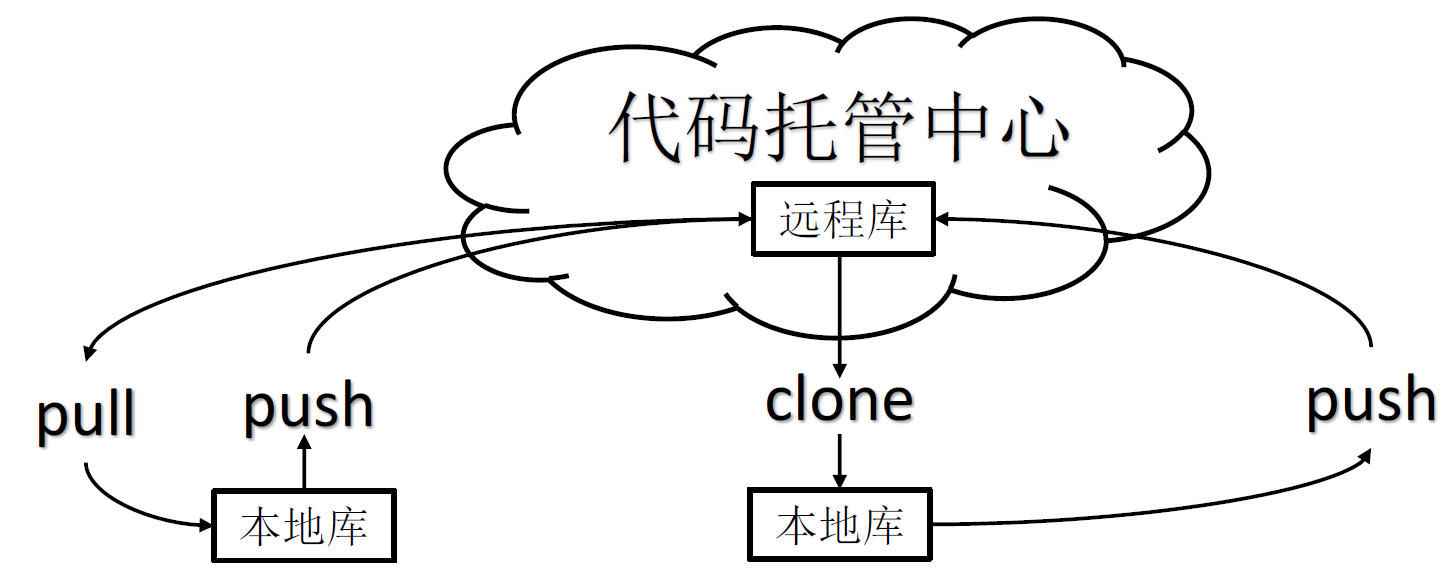
团队内协作
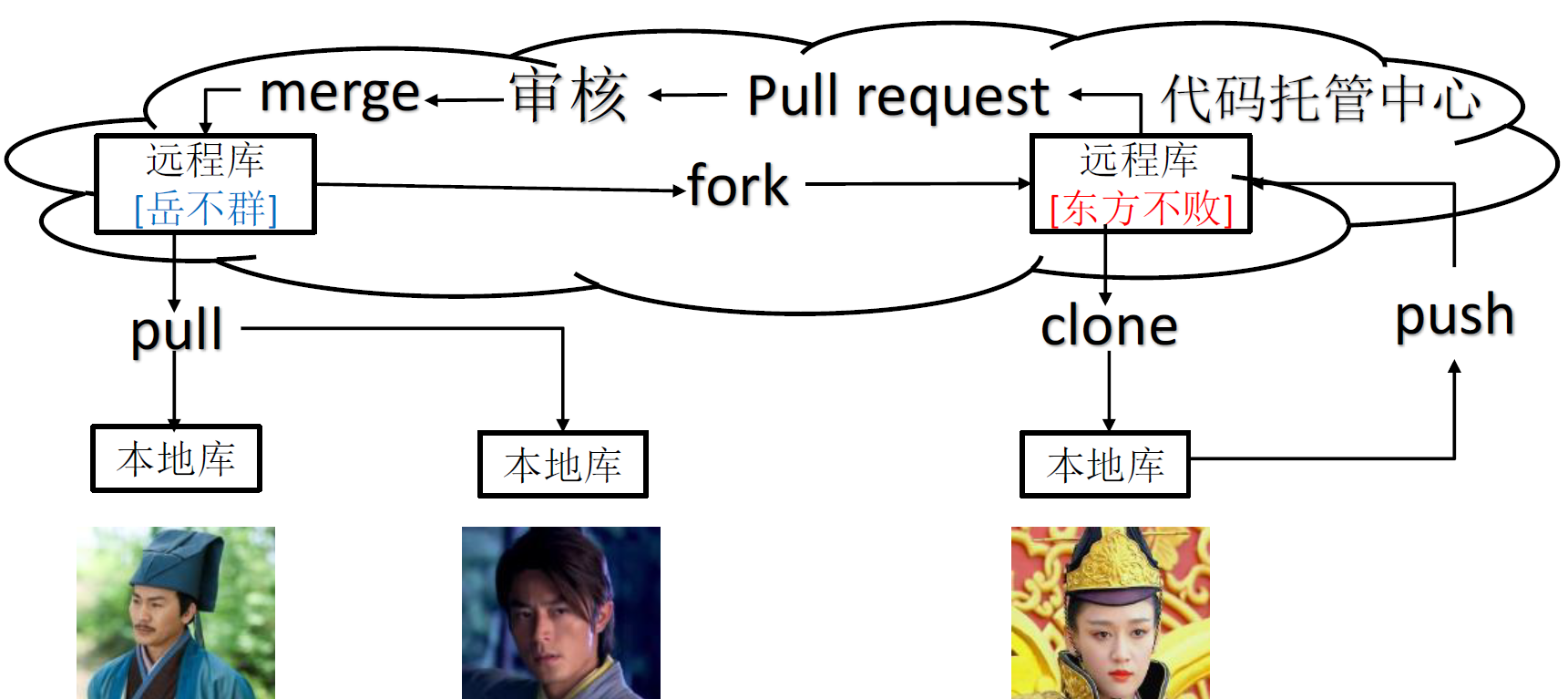
跨团队协作
GitHub操作
登录需要3个号进行配合操作
创建远程库
登录之后点击右上角+号,点击New repository,起一个远程库名字(这个名字最好和本地的git项目名字一样),选择Public,创建。
| 账号 | 远程库名字 | 创建的别名 |
|---|---|---|
| hubhubqqtr | git-demo | git-demo |
| pqpq | git-demo | origin |
| fftyqqs | …… | …… |
远程仓库操作
| 命令名称 | 作用 |
|---|---|
| git remote -v | 查看当前所有远程地址别名 |
| git remote add 别名 远程地址 | 创建别名 |
| git push 别名 分支 | 推送本地分支上的内容到远程仓库 |
| git clone 远程地址 | 将远程仓库的内容克隆到本地 |
| git pull 远程地址别名 远程分支名 | 将远程仓库对于分支最新内容拉下来后与当前本地分支直接合并 |
1、创建远程仓库别名
bash
bashgit remote add git-demo https://github.com/hubhubqqtr/git-demo.git

bashgit remote -v
git-demo        https://github.com/hubhubqqtr/git-demo.git (fetch)
git-demo https://github.com/hubhubqqtr/git-demo.git (push)2、推送本地分支到远程仓库
bash
bashgit push git-demo master
Enumerating objects: 18, done.
Counting objects: 100% (18/18), done.
Delta compression using up to 6 threads
Compressing objects: 100% (12/12), done.
Writing objects: 100% (18/18), 1.35 KiB | 1.35 MiB/s, done.
Total 18 (delta 5), reused 0 (delta 0), pack-reused 0
remote: Resolving deltas: 100% (5/5), done.
To https://github.com/hubhubqqtr/git-demo.git
* [new branch] master -> master使用windows,过程中会弹出“凭据管理器”进行登录账号即可。
此时在github上查看可以看到远程推送成功。
3、拉取项目
(拉取远程仓库到本地并合并整合)
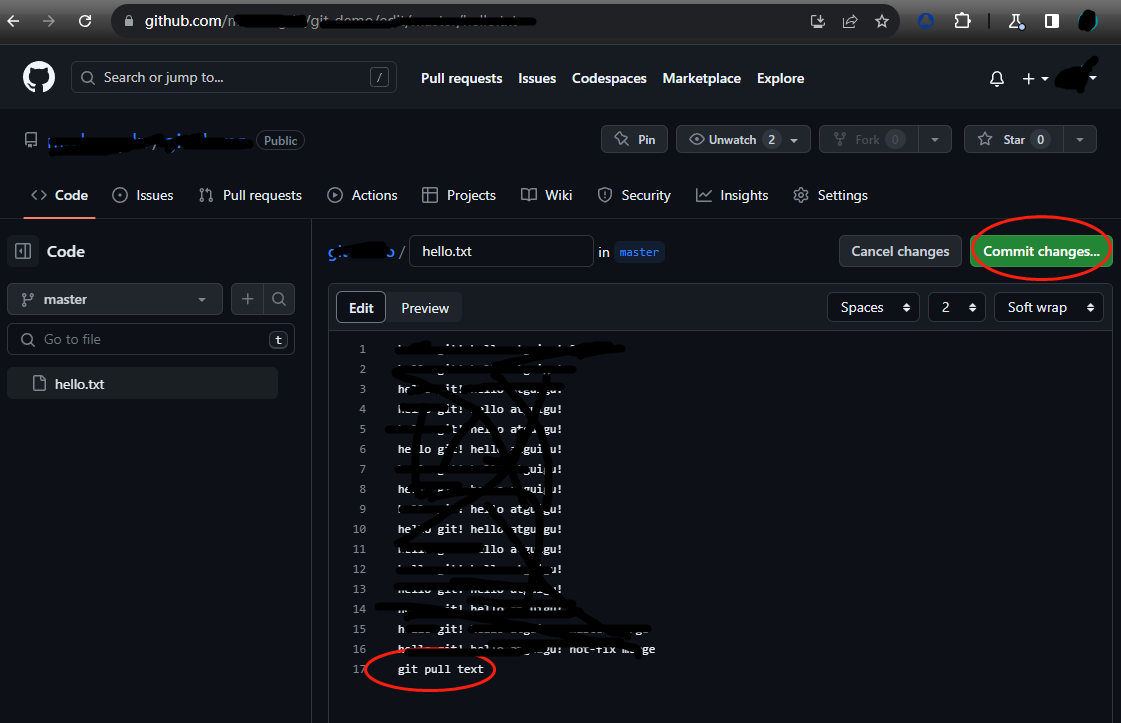
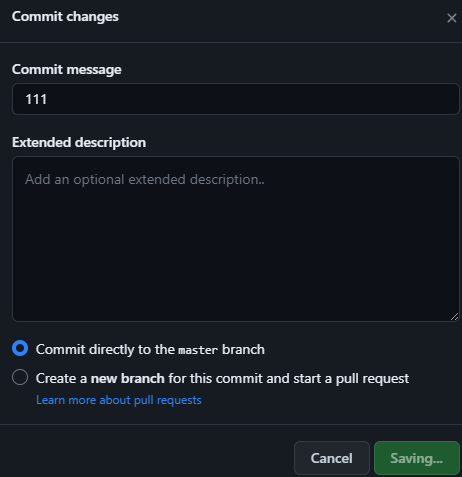
先在远程库上修改文件,然后提交
bash
bashgit pull git-demo master
remote: Enumerating objects: 5, done.
remote: Counting objects: 100% (5/5), done.
remote: Compressing objects: 100% (2/2), done.
remote: Total 3 (delta 1), reused 0 (delta 0), pack-reused 0
Unpacking objects: 100% (3/3), 651 bytes | 8.00 KiB/s, done.
From https://github.com/hubhubqqtr/git-demo
 * branch            master     -> FETCH_HEAD
   93f06de..ff861db  master     -> git-demo/master
Updating 93f06de..ff861db
Fast-forward
 hello.txt | 1 +
1 file changed, 1 insertion(+)4、克隆远程仓库到本地
先cd到一个新文件
bash
cd /home/ggt/pqpq

git clone https://github.com/hubhubqqtr/git-demo.git
Cloning into 'git-demo'...
remote: Enumerating objects: 21, done.
remote: Counting objects: 100% (21/21), done.
remote: Compressing objects: 100% (9/9), done.
remote: Total 21 (delta 6), reused 17 (delta 5), pack-reused 0
Receiving objects: 100% (21/21), done.
Resolving deltas: 100% (6/6), done.

cd git-demo/

git remote -v
origin  https://github.com/hubhubqqtr/git-demo.git (fetch)
origin  https://github.com/hubhubqqtr/git-demo.git (push)

git branch -v
* master ff861db 111clone会做如下操作:拉取代码->初始化本地库->自动创建别名。
5、邀请加入团队
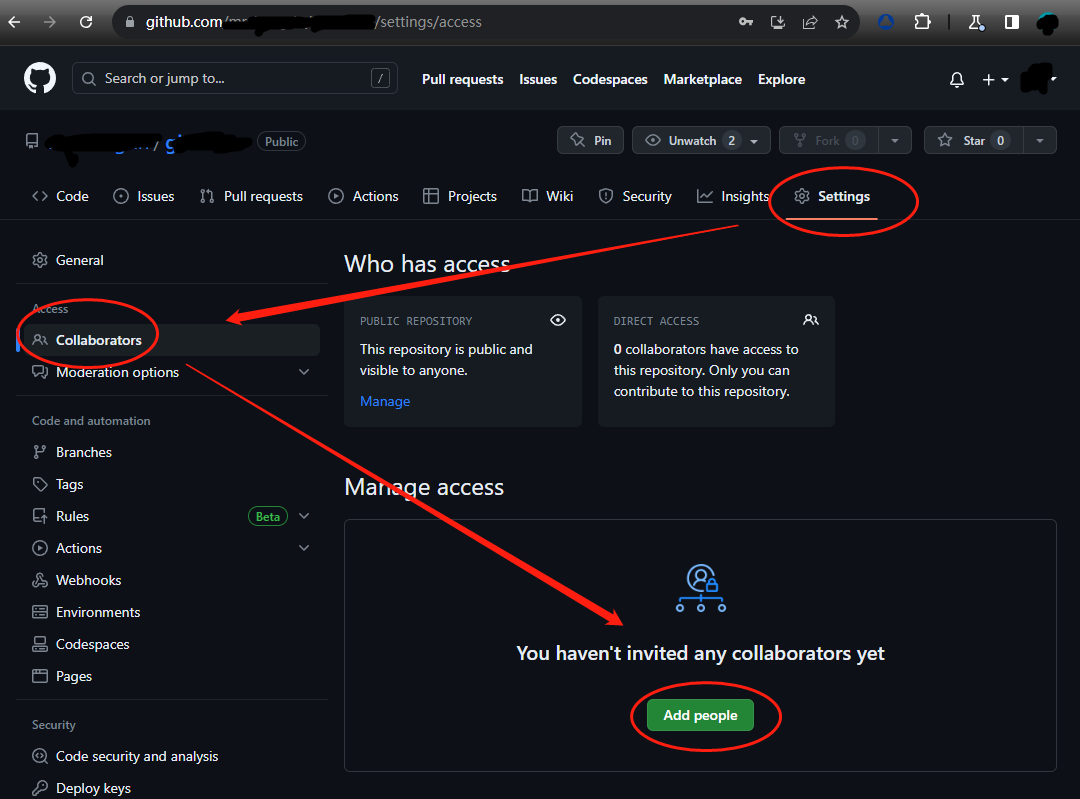
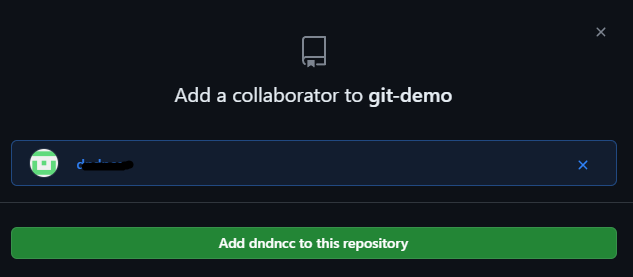
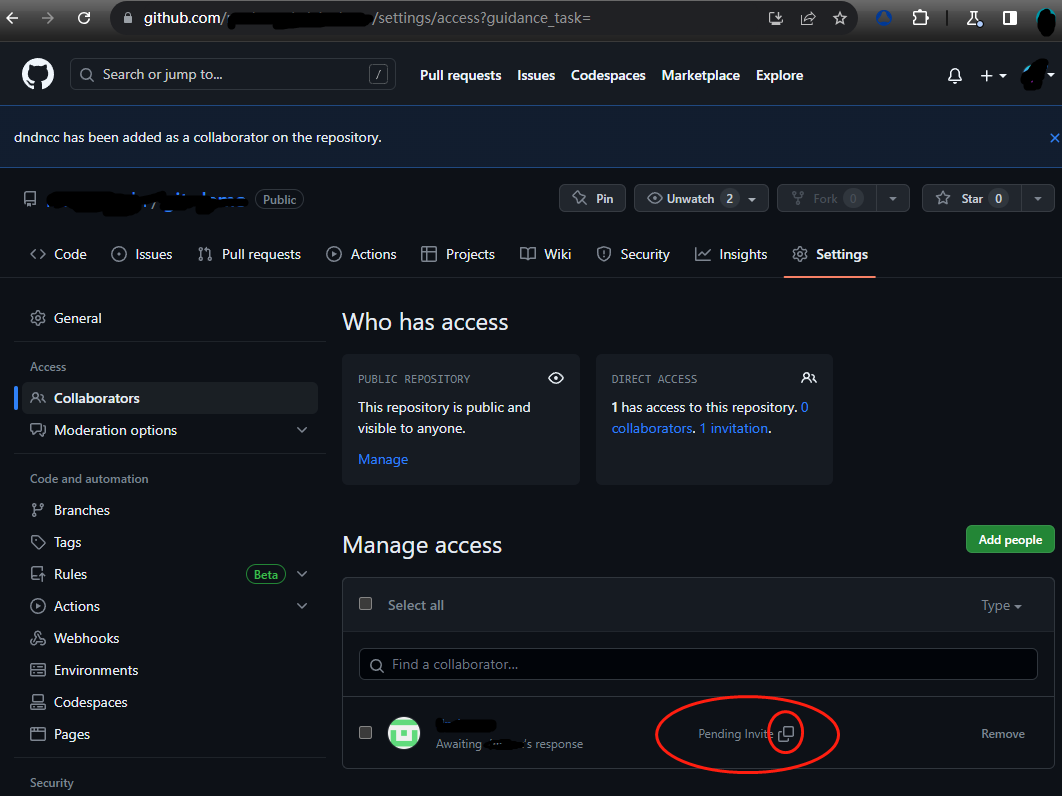
复制以上的地址后,发给pqpq用户,pqpq登录的浏览器里粘贴然后接受邀请,然后就可以看到协同的项目了。
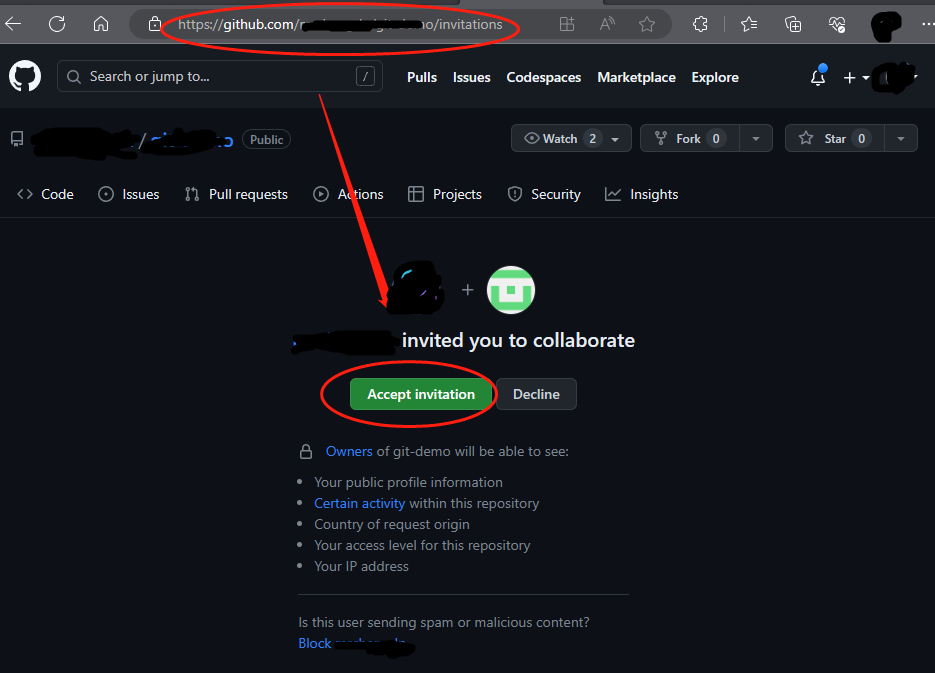
pqpq可以修改内容并push到远程仓库了。
pqpq编辑项目
bash
cat hello.txt
hello git! hello atguigu! 22222
hello git! hello atguigu!
hello git! hello atguigu!
hello git! hello atguigu!
hello git! hello atguigu!
hello git! hello atguigu!
hello git! hello atguigu!
hello git! hello atguigu!
hello git! hello atguigu!
hello git! hello atguigu!
hello git! hello atguigu!
hello git! hello atguigu!
hello git! hello atguigu!
hello git! hello atguigu!
hello git! hello atguigu! master merge
hello git! hello atguigu! hot-fix merge
git pull text
git pqpq commit

git push https://github.com/hubhubqqtr/git-demo.git master
Enumerating objects: 5, done.
Counting objects: 100% (5/5), done.
Delta compression using up to 6 threads
Compressing objects: 100% (2/2), done.
Writing objects: 100% (3/3), 276 bytes | 276.00 KiB/s, done.
Total 3 (delta 1), reused 0 (delta 0), pack-reused 0
remote: Resolving deltas: 100% (1/1), completed with 1 local object.
To https://github.com/hubhubqqtr/git-demo.git
ff861db..abf1be3 master -> master然后在hubhubqqtr项目上就可以看到更新的项目。
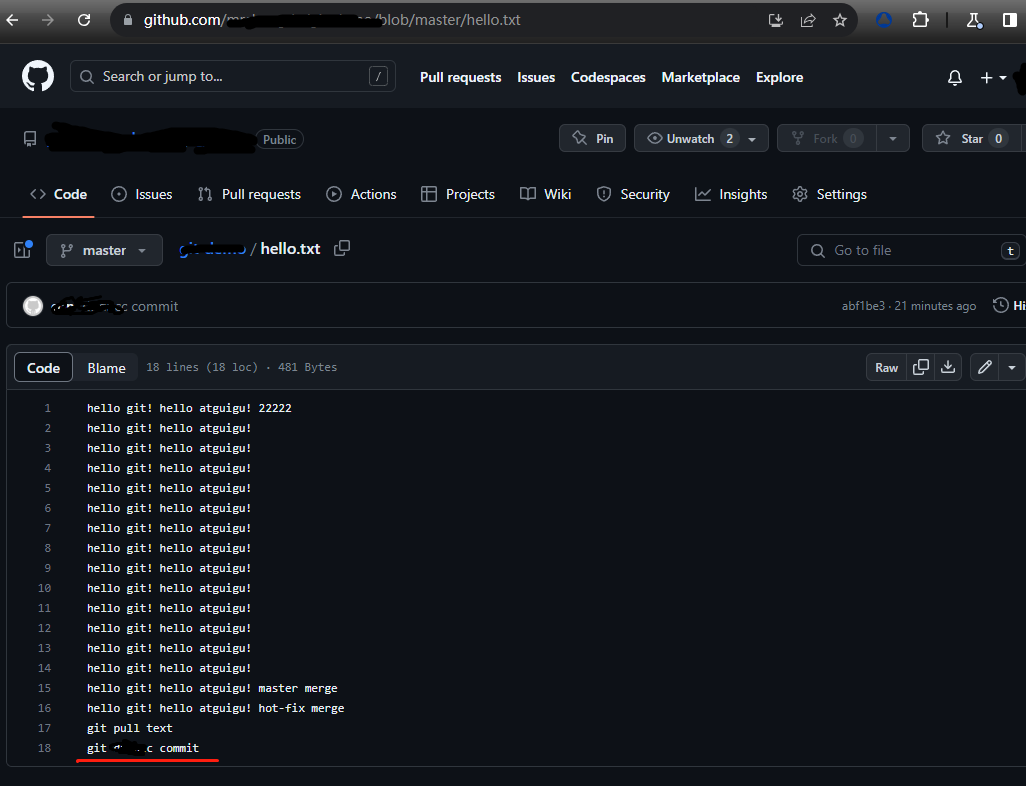
6、拉取远程库内容
hubhubqqtr/git-demo项目里pqpq提交更新了版本,hubhubqqtr需要将项目拉取更新自己的本地库。
bash
bashgit pull git-demo master
remote: Enumerating objects: 5, done.
remote: Counting objects: 100% (5/5), done.
remote: Compressing objects: 100% (1/1), done.
remote: Total 3 (delta 1), reused 3 (delta 1), pack-reused 0
Unpacking objects: 100% (3/3), 256 bytes | 2.00 KiB/s, done.
From https://github.com/hubhubqqtr/git-demo
 * branch            master     -> FETCH_HEAD
   ff861db..abf1be3  master     -> git-demo/master
Updating ff861db..abf1be3
Fast-forward
 hello.txt | 1 +
 1 file changed, 1 insertion(+)

bashcat hello.txt
hello git! hello atguigu! 22222
hello git! hello atguigu!
hello git! hello atguigu!
hello git! hello atguigu!
hello git! hello atguigu!
hello git! hello atguigu!
hello git! hello atguigu!
hello git! hello atguigu!
hello git! hello atguigu!
hello git! hello atguigu!
hello git! hello atguigu!
hello git! hello atguigu!
hello git! hello atguigu!
hello git! hello atguigu!
hello git! hello atguigu! master merge
hello git! hello atguigu! hot-fix merge
git pull text
git pqpq commit跨团队协作
将远程仓库的地址复制发给邀请跨团队协作的人,比如fftyqqs。
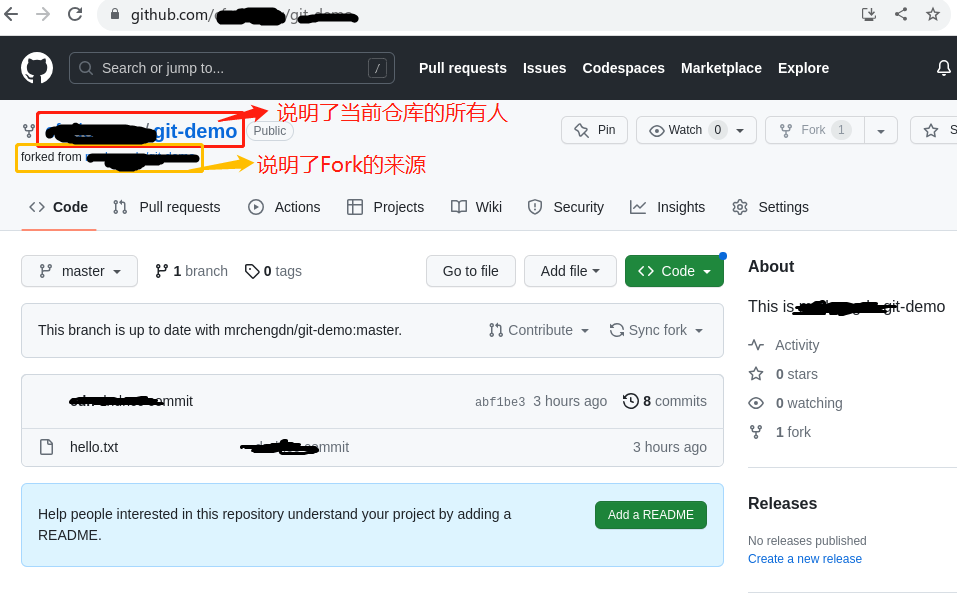
fftyqqs收到别人发来的链接后,比如:git-demo链接地址,然后Fork将项目叉到自己的本地仓库。
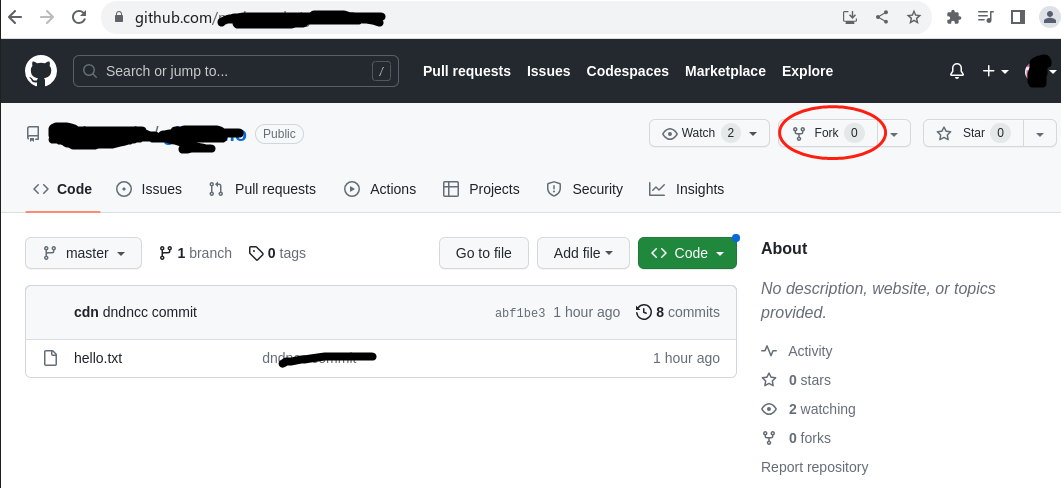
然后编辑项目,提交
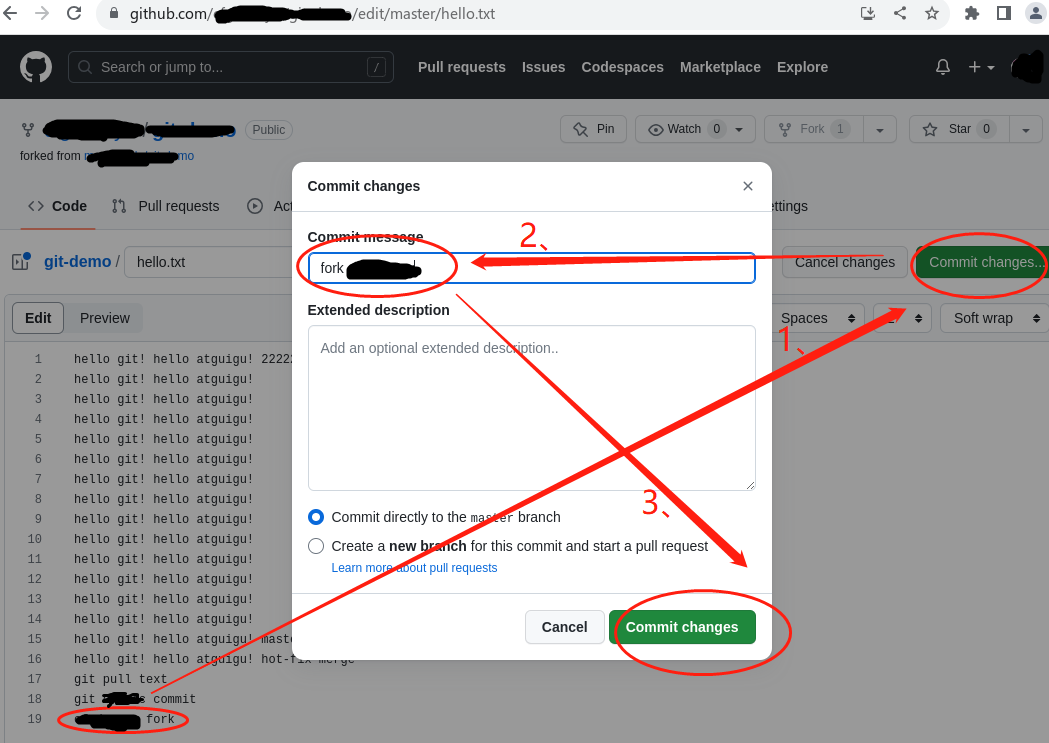
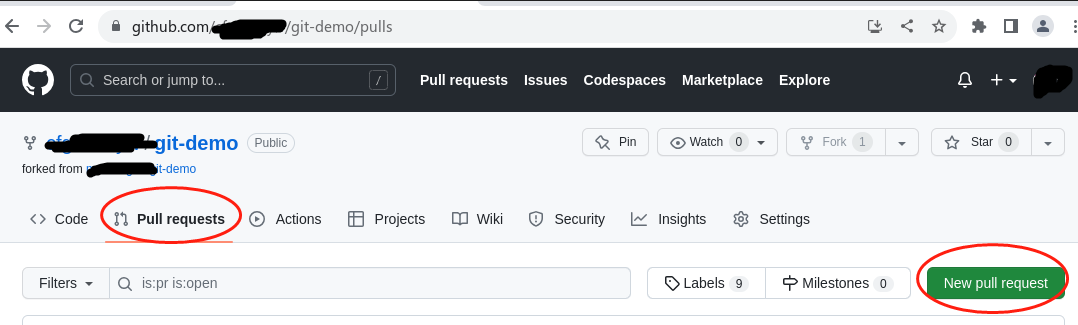
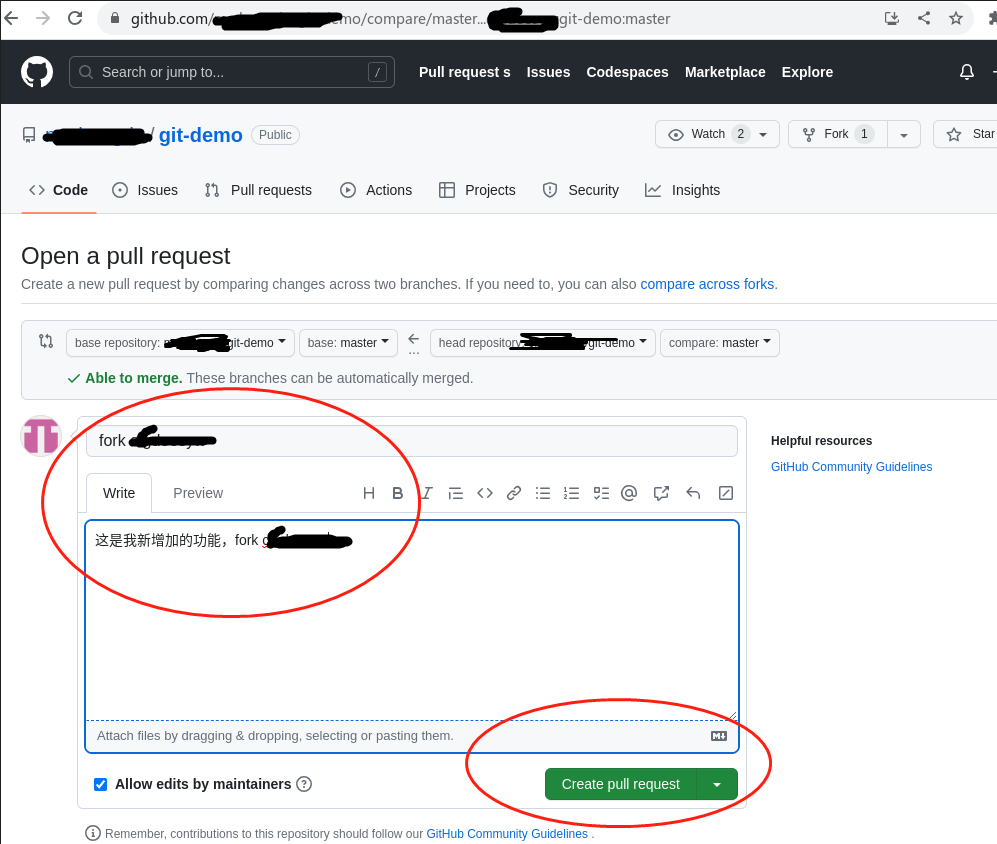
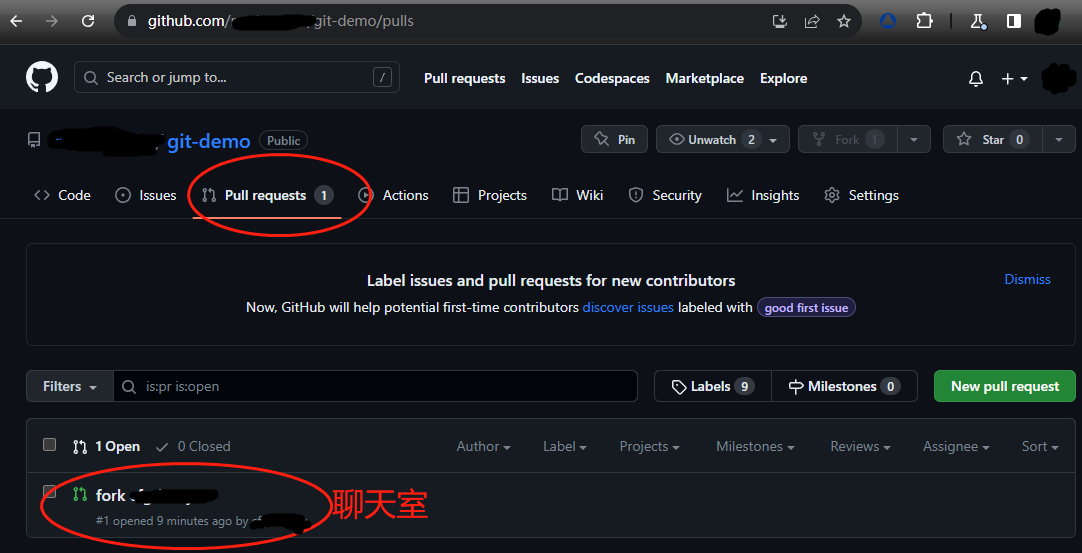
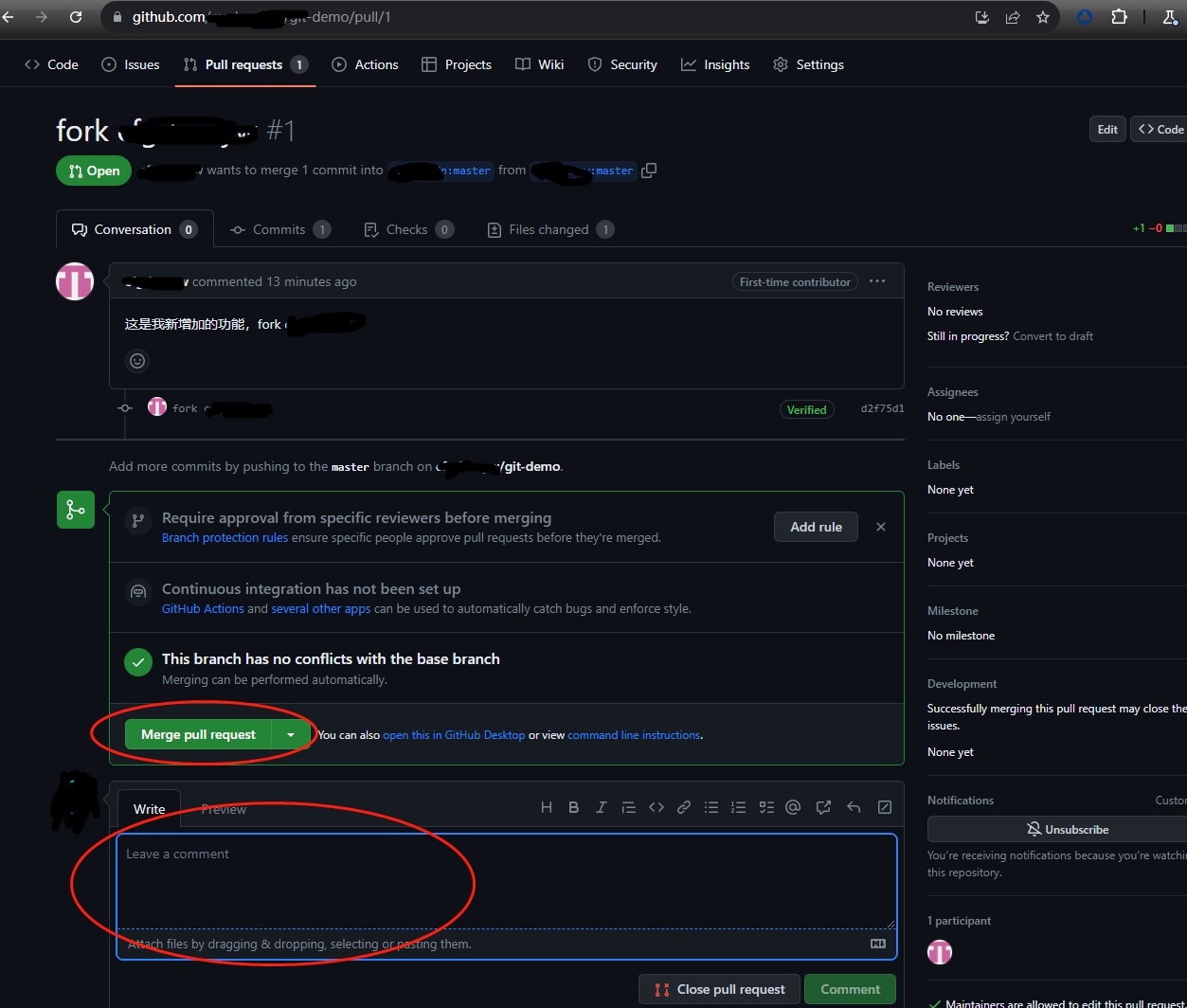
回到hubhubqqtr账号上可以看到有一个Pull request请求。进入聊天室,可以讨论代码相关内容。
Write处可以和对方进行聊天,要是没有问题可以点击Merge pull request进行合并代码。
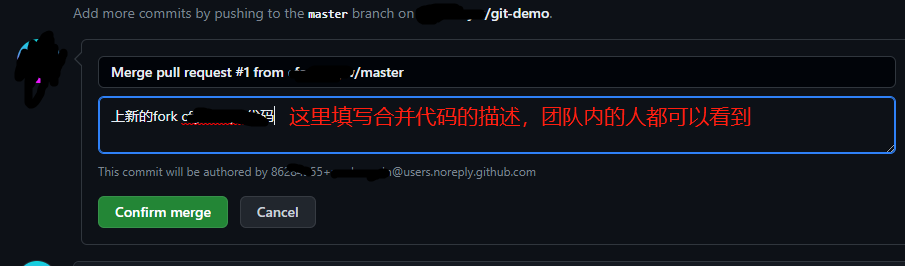
在hubhubqqtr的本地上拉取更新远程仓库的内容,更新之后就可以看到hello.txt文件被更新了。
bash
bashgit branch -r
  git-demo/master

bashgit pull git-demo master
remote: Enumerating objects: 6, done.
remote: Counting objects: 100% (6/6), done.
remote: Compressing objects: 100% (3/3), done.
remote: Total 4 (delta 1), reused 0 (delta 0), pack-reused 0
Unpacking objects: 100% (4/4), 1.27 KiB | 8.00 KiB/s, done.
From https://github.com/hubhubqqtr/git-demo
 * branch            master     -> FETCH_HEAD
   abf1be3..7950d87  master     -> git-demo/master
Updating abf1be3..7950d87
Fast-forward
 hello.txt | 1 +
1 file changed, 1 insertion(+)SSH免密登录
我们可以看到远程仓库中有一个SSH的地址,因此我们也可以使用SSH进行访问。
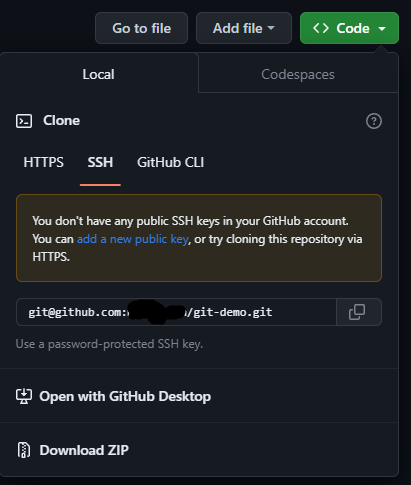
进入用户的家目录->清理掉.ssh文件->ssh-keygen -t rsa命令生成公钥->将公钥里的内容复制到github账户上
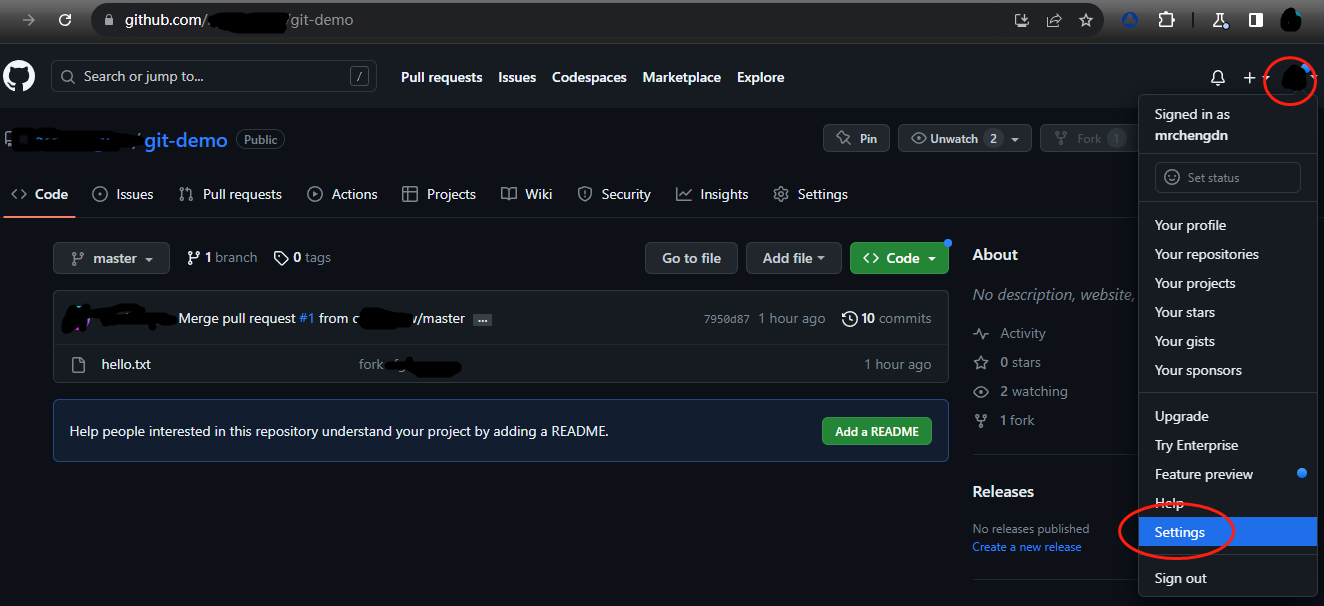
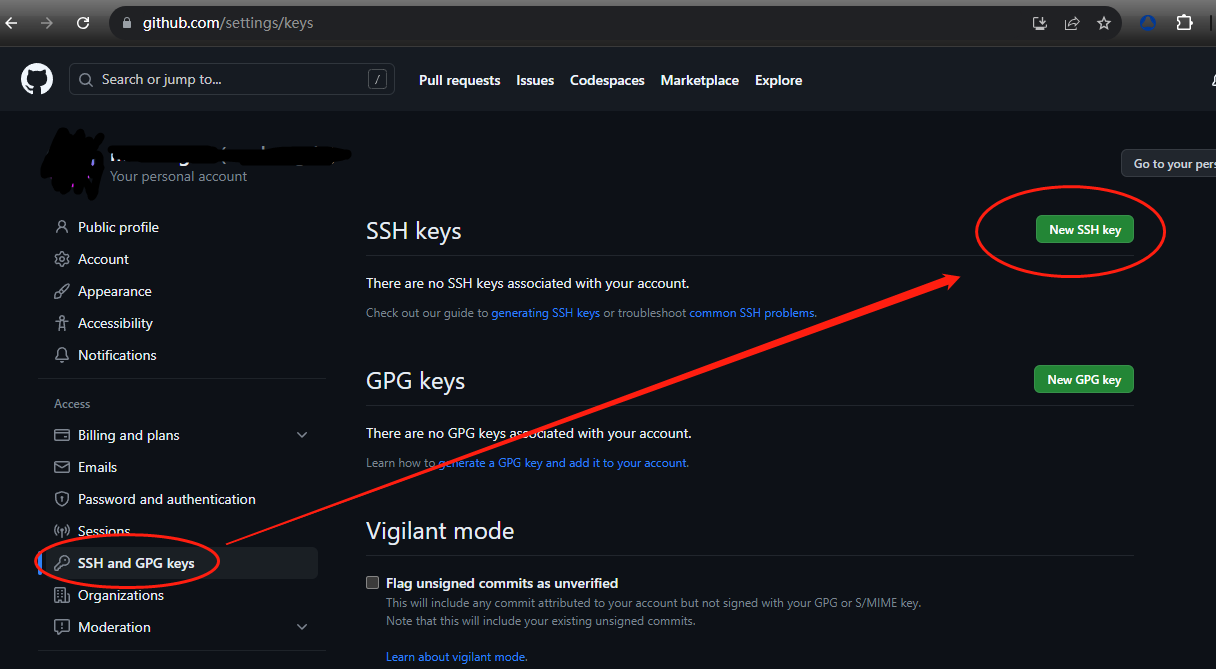
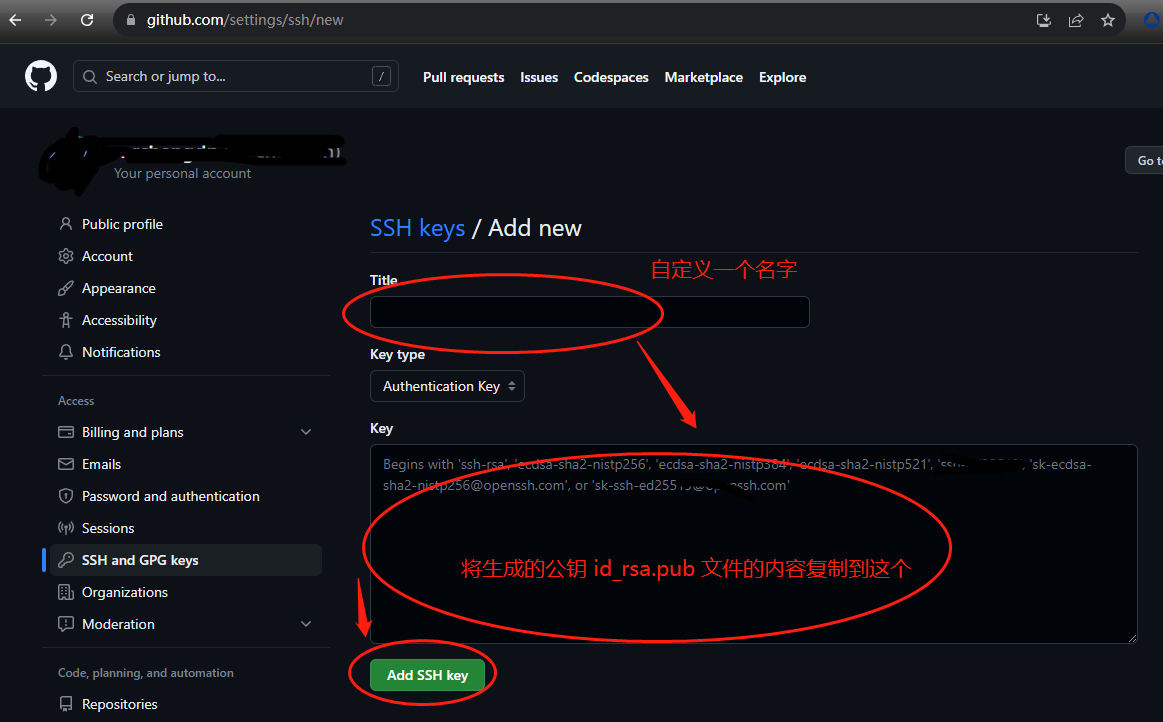
接下来再往远程仓库push东西的啥时候使用SSH连接就不需要登录了。
IDEA集成Git
……
IDEA集成GitHub
……
国内代码托管中心码云Gitee
自行在gitee官网上注册账号
码云复制GitHub项目
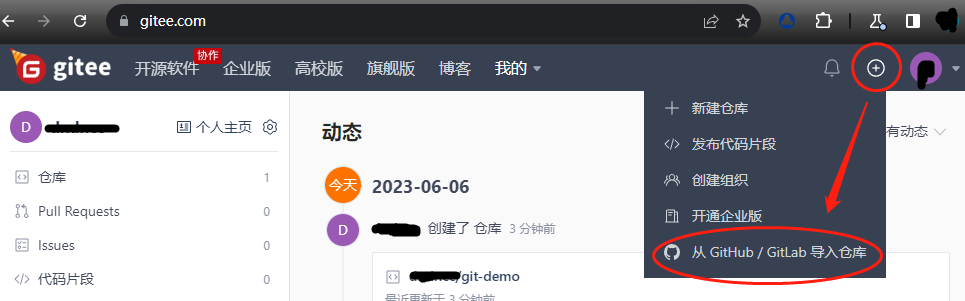
自建代码托管平台GitLad
gitlab-ce社区免费版,gitlab-ee企业收费版。
安装时需要结合官网教程进行安装。