Appearance
苹果系统安装
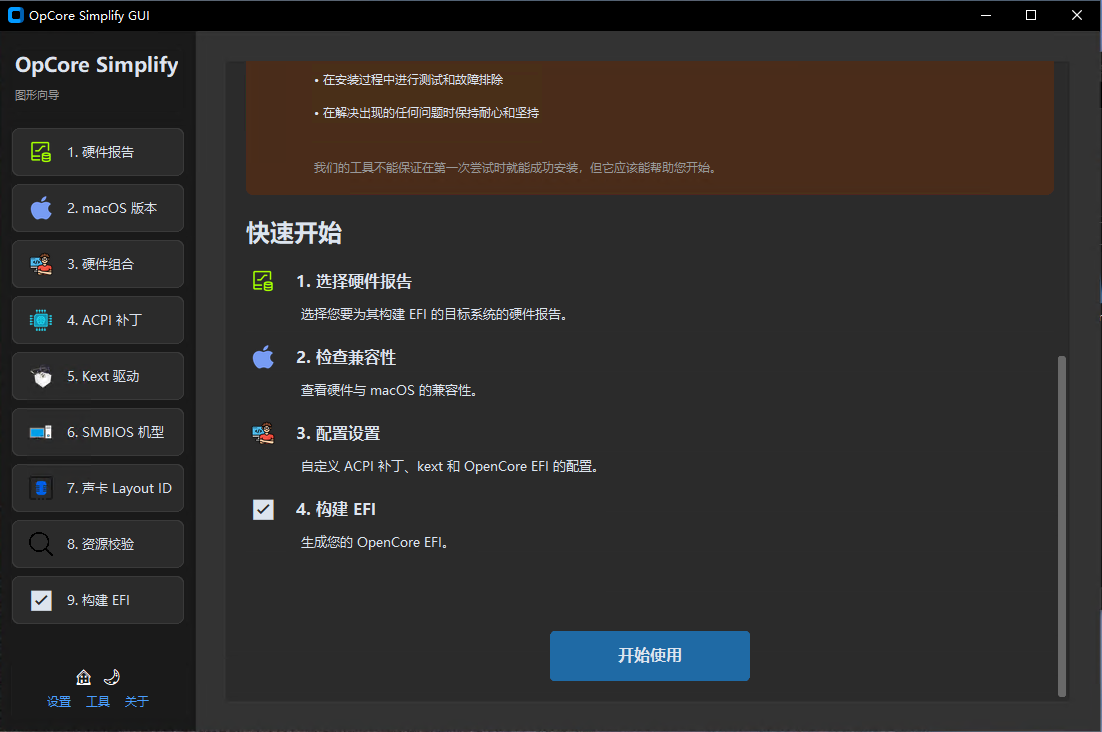
制作EFI引导
1、【github】下载 OpCore-Simplify-GUI,用来制作MacOS的EFI引导。
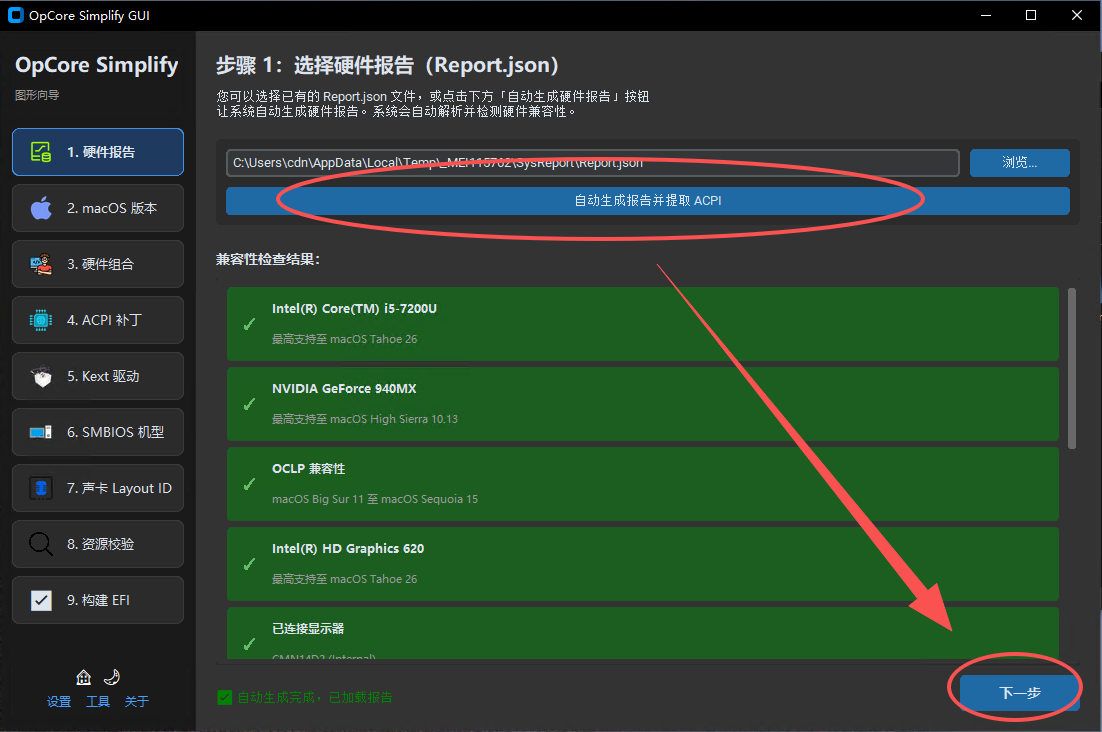
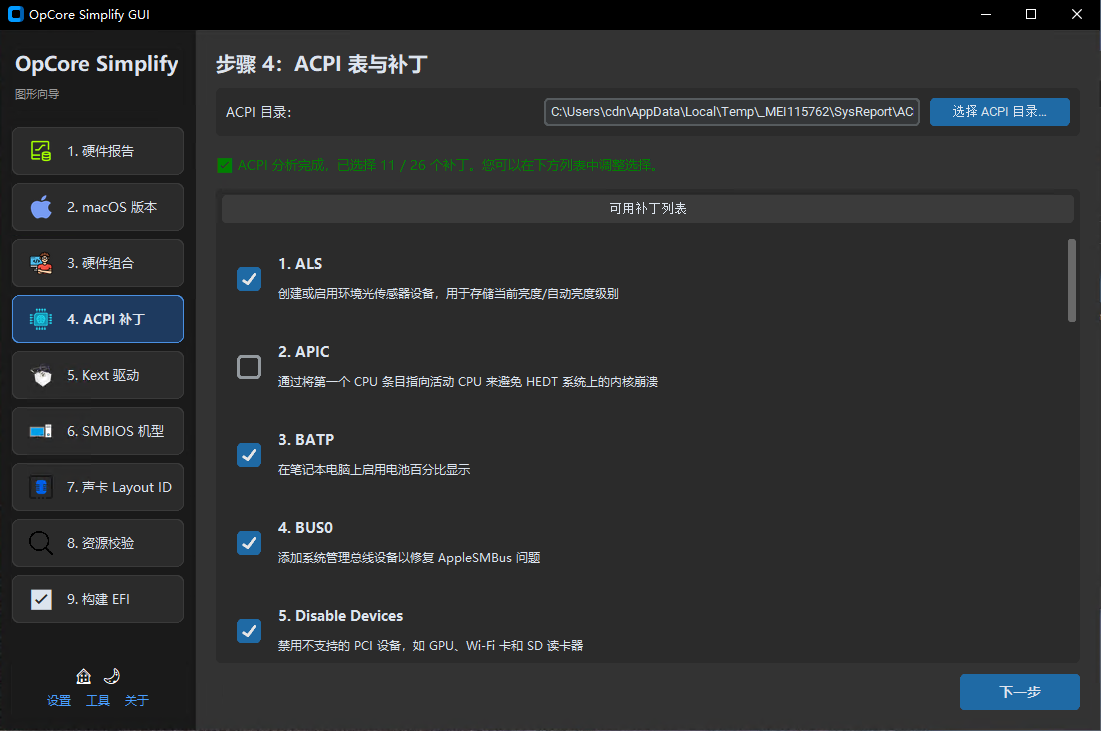
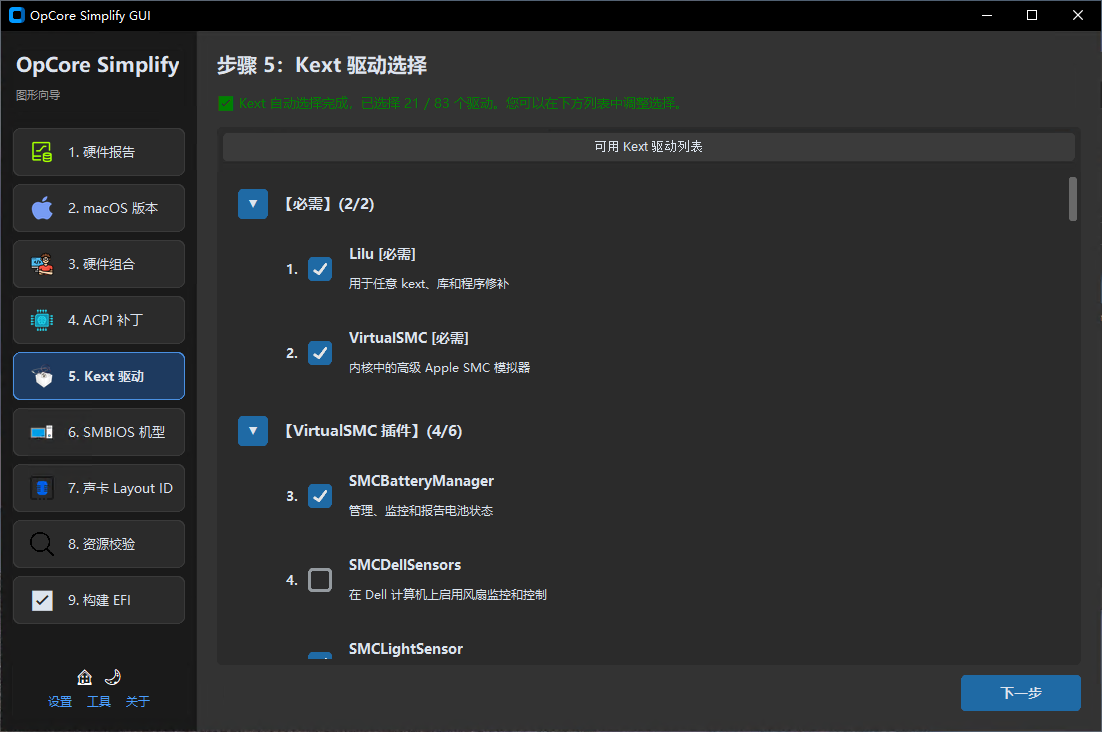
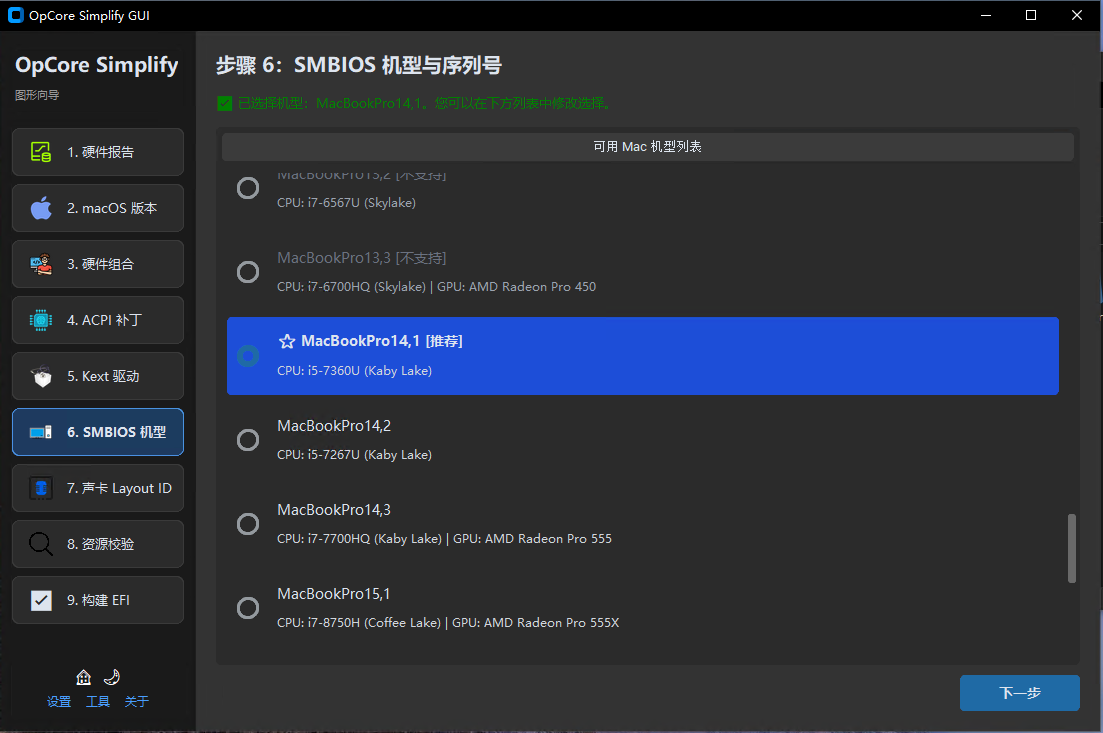
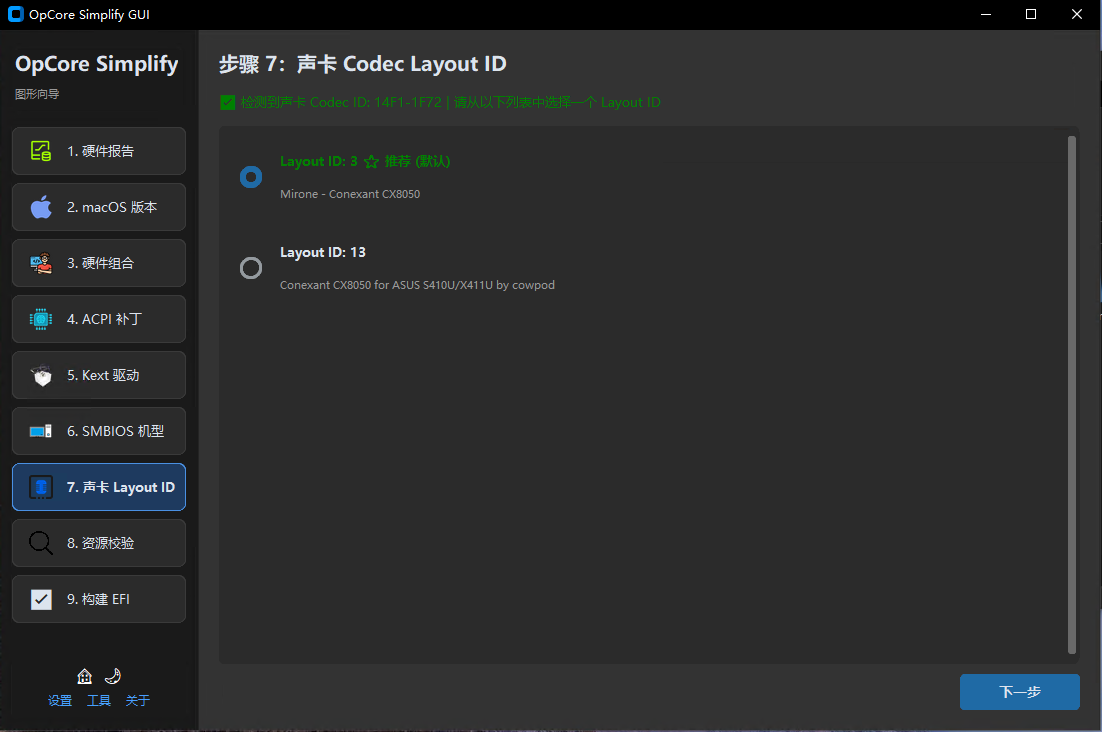
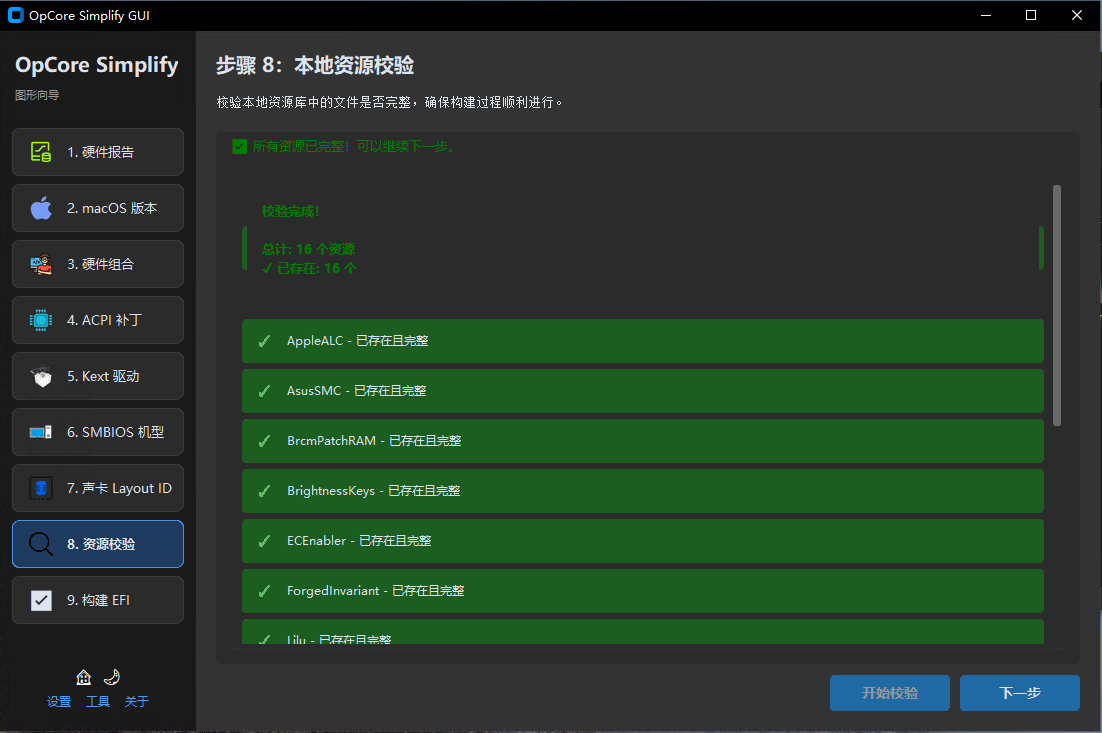
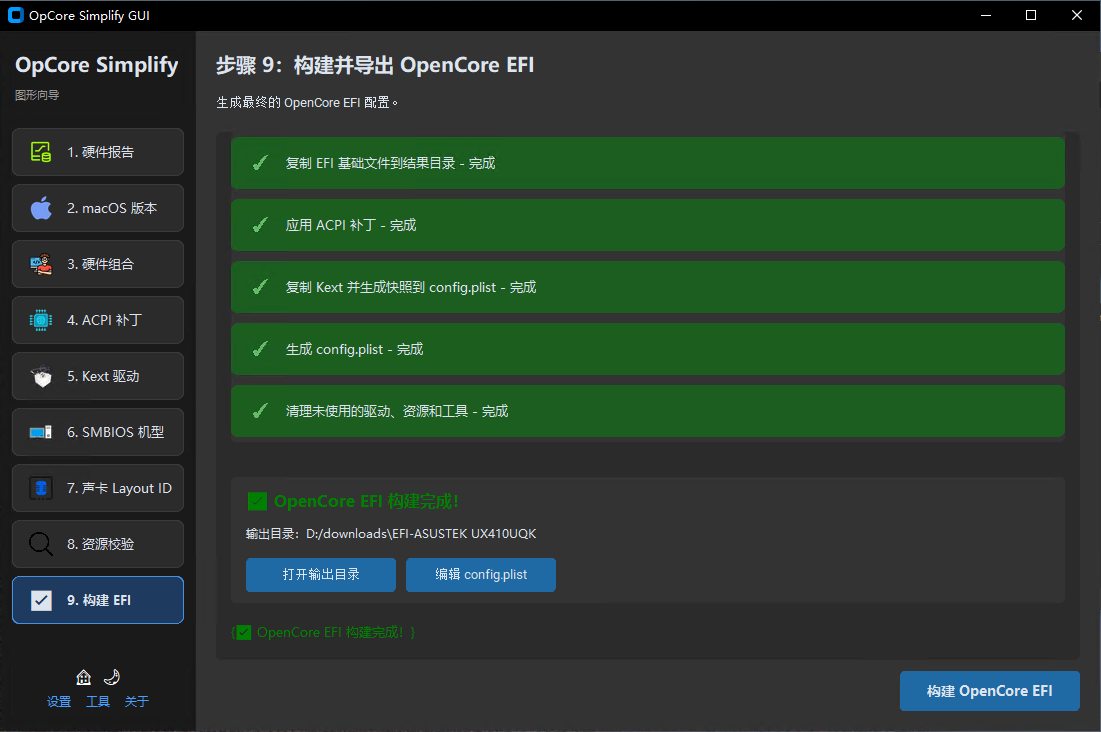
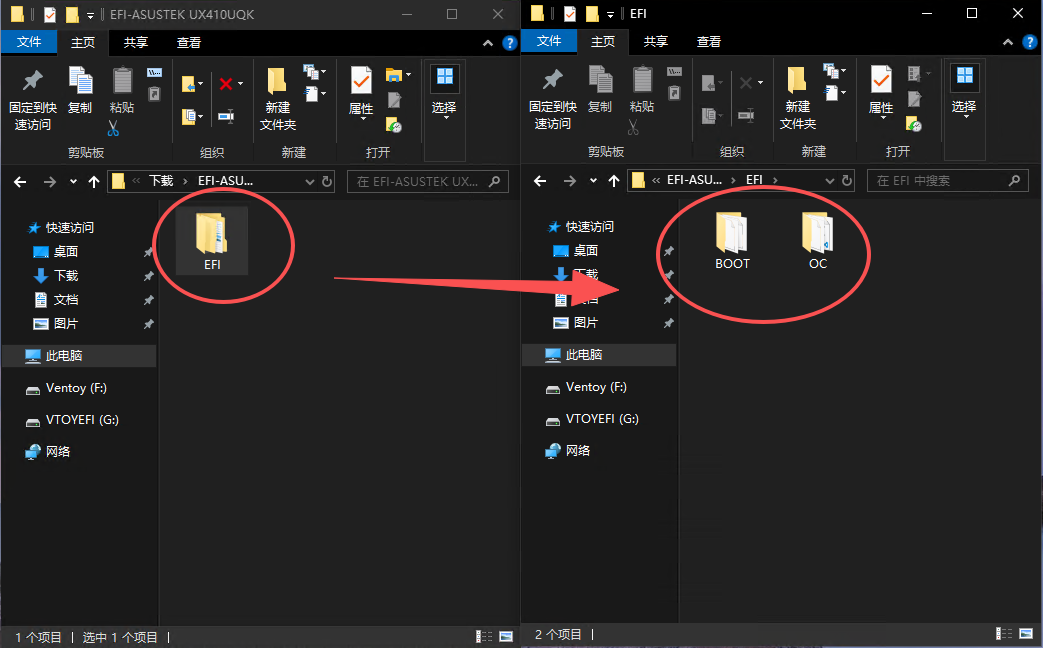
2、在所需安装MacOS系统的电脑上,解压运行OpCore-Simplify.exe,都自动检测,默认下一步就行,到最后生成的EFI文件就是所需要的。

下载苹果镜像
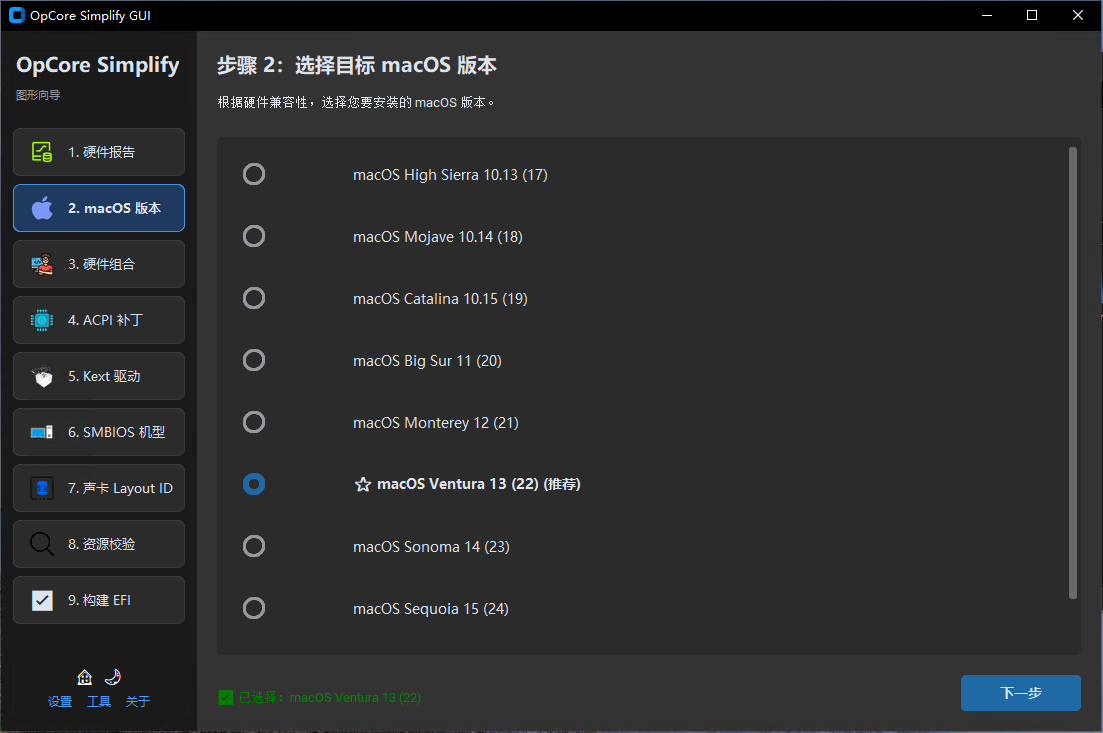
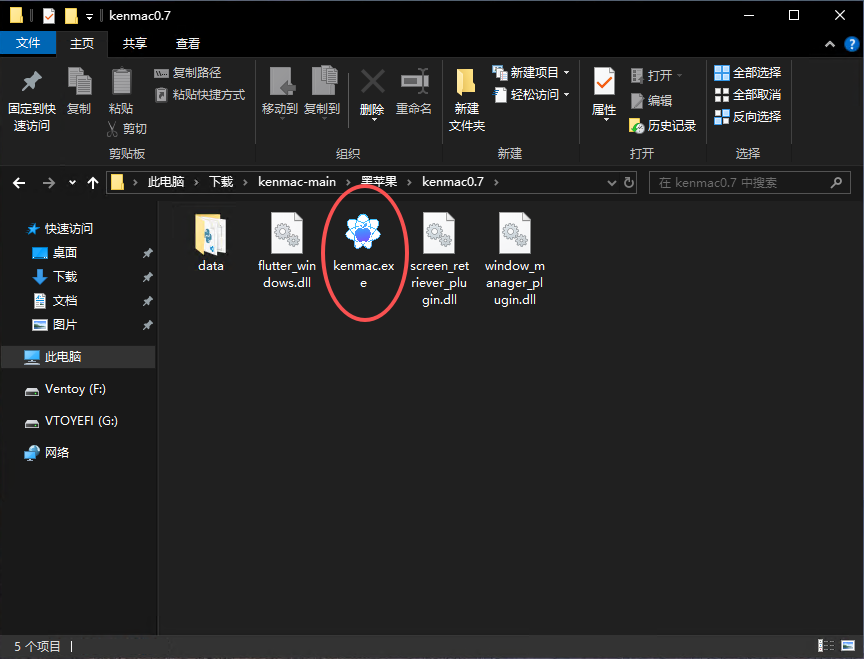
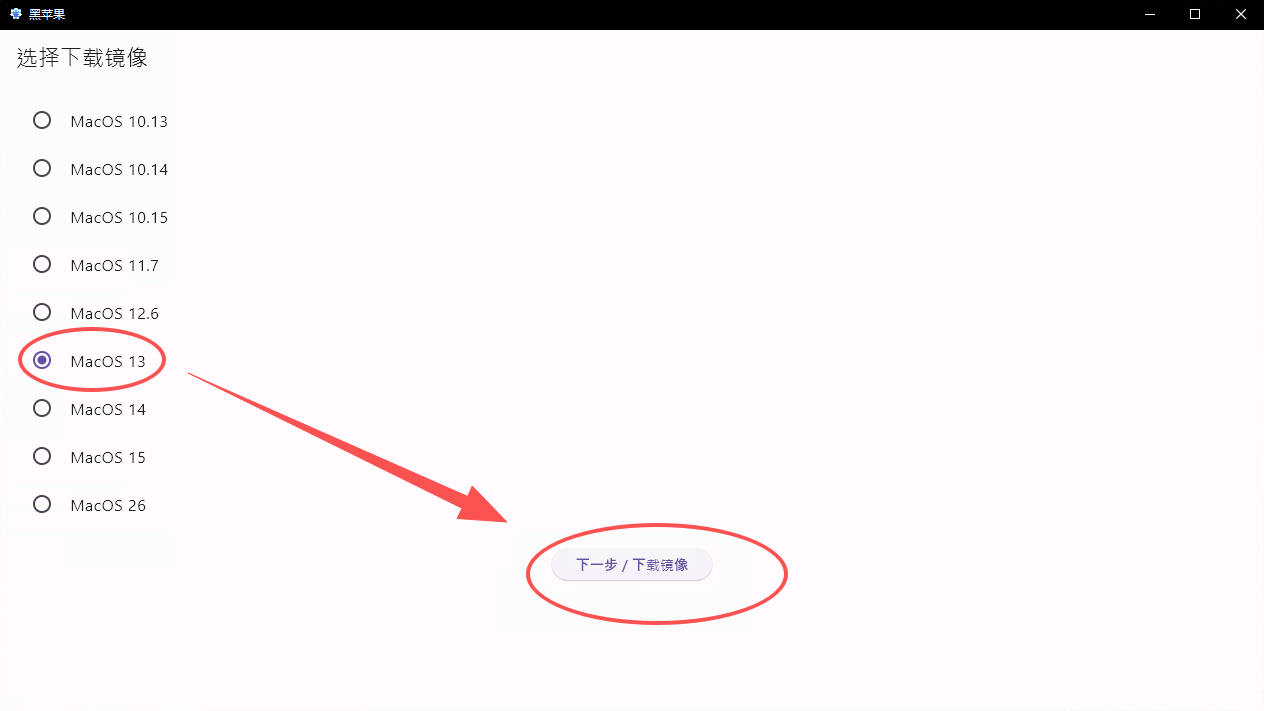
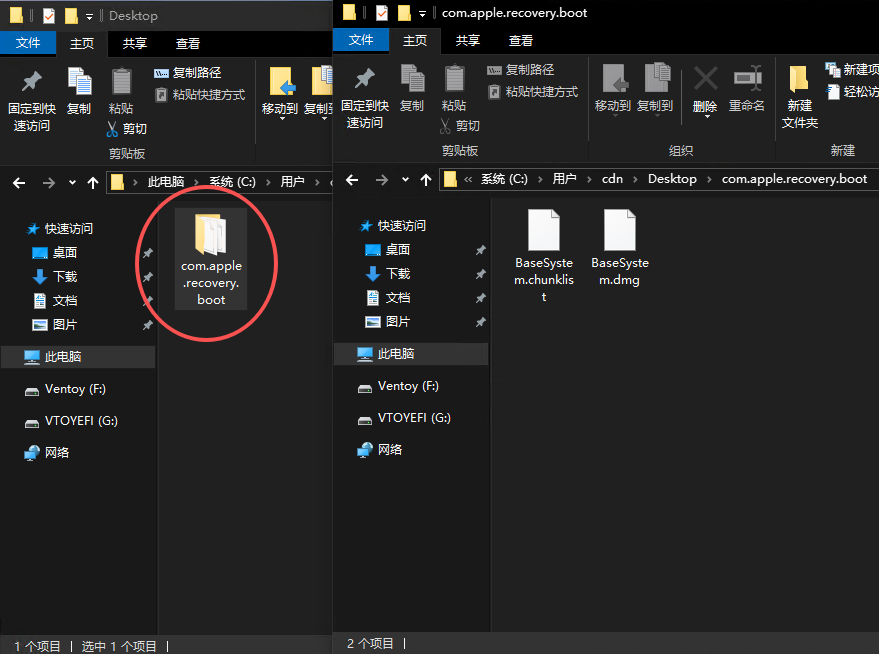
【github】下载 kenmac,用来下载苹果在线网络安装镜像,选择OpCore-Simplify-GUI运行时推荐的MacOS版本。
硬盘分区
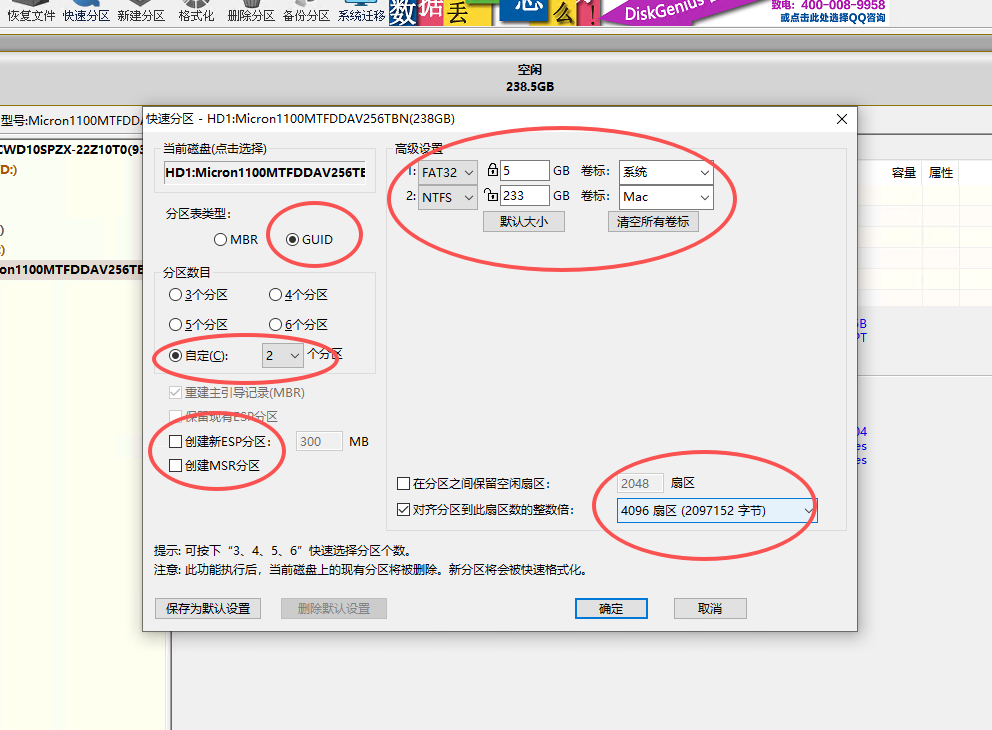
1、Diskgenius用来给苹果系统分引导分区。
2、将硬盘分成两个区,分区类型为GPT,不要创建ESP和MSR,其中一个FAT32格式,大小为5G,作为MacOS的引导分区;剩下的为另一个分区,先NTFS格式,装系统时会选择MacOS的分区格式APFS,可以将卷标改为MacOS,装系统时好认;对齐4096扇区。
开始安装系统
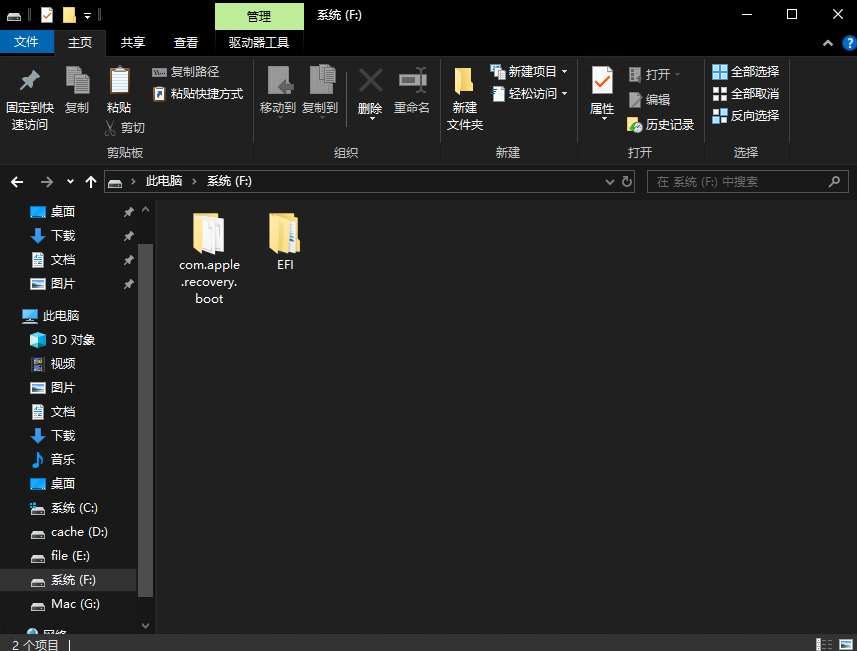
1、将EFI文件和苹果镜像文件com.apple.recovery.boot放入大小为5G的引导分区中。
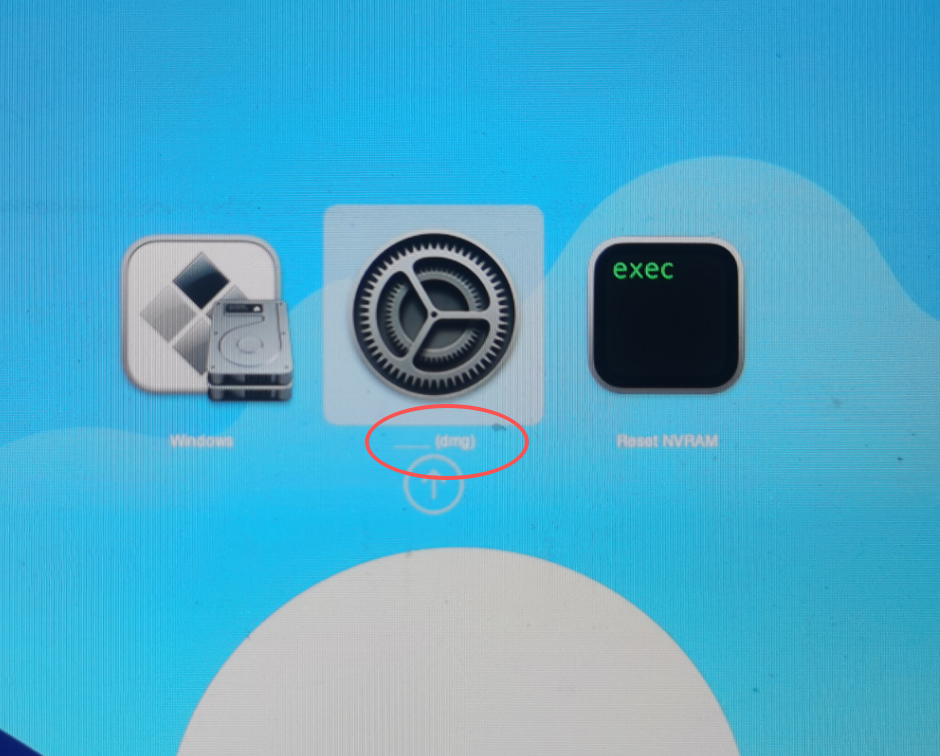
2、开机进入bios更改第一启动项,选要安装MacOS系统的那块硬盘,然后重启选择带dmg的那块硬盘。
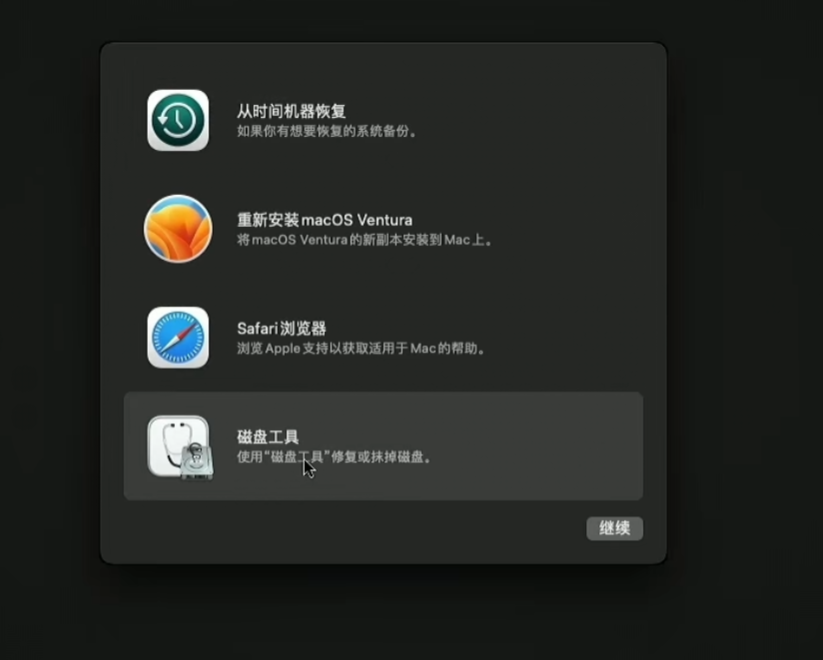
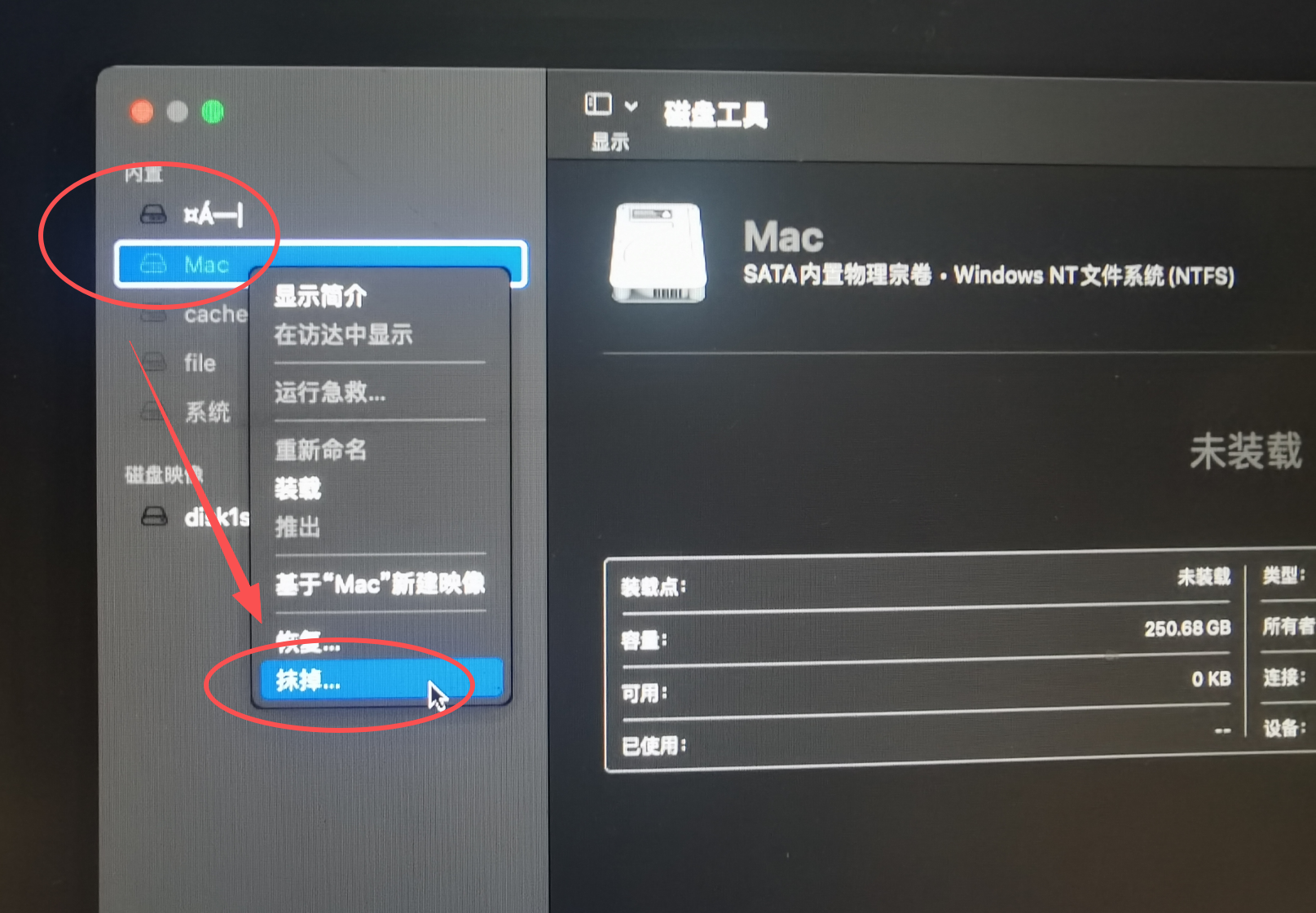
格式选择APFS
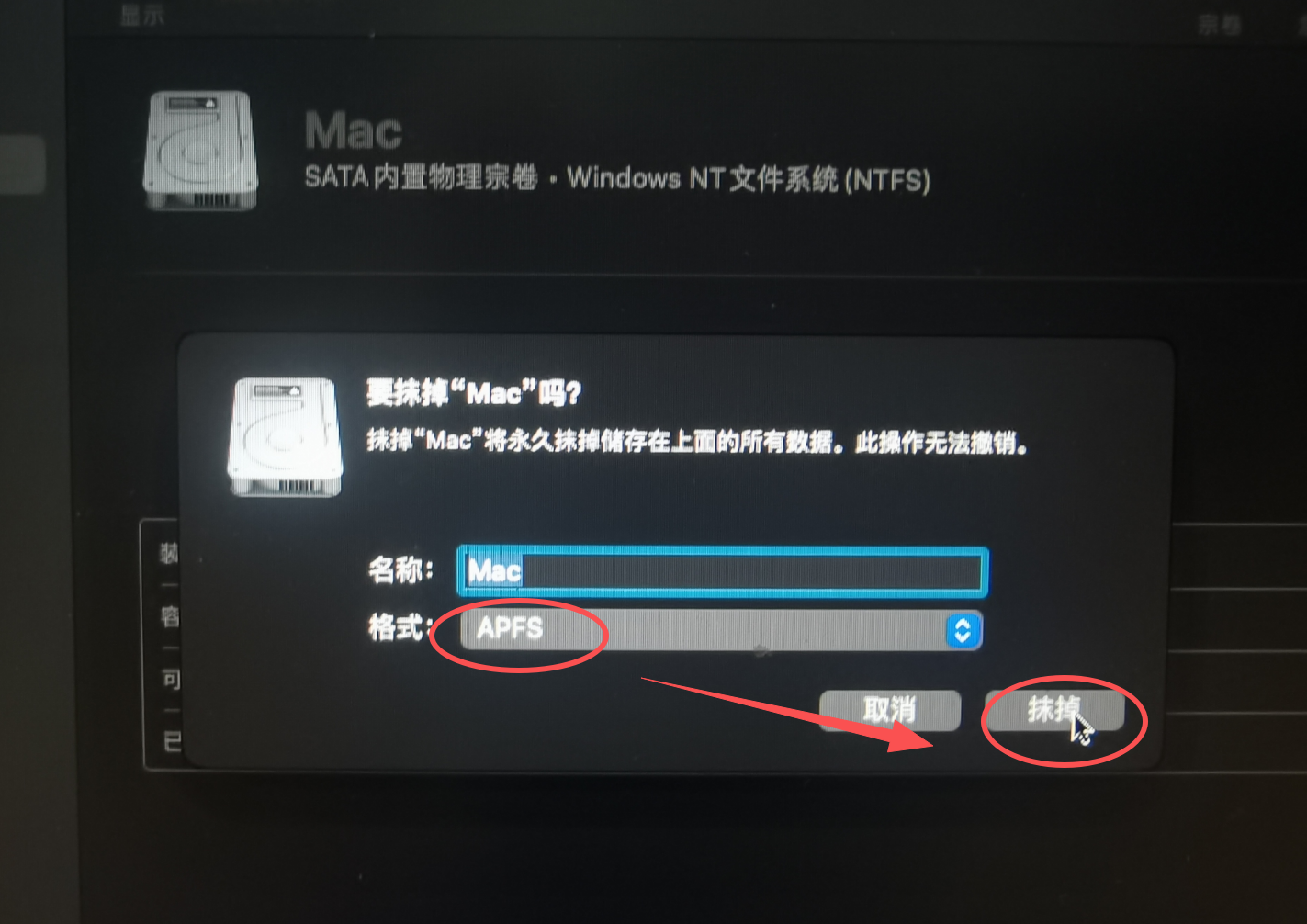
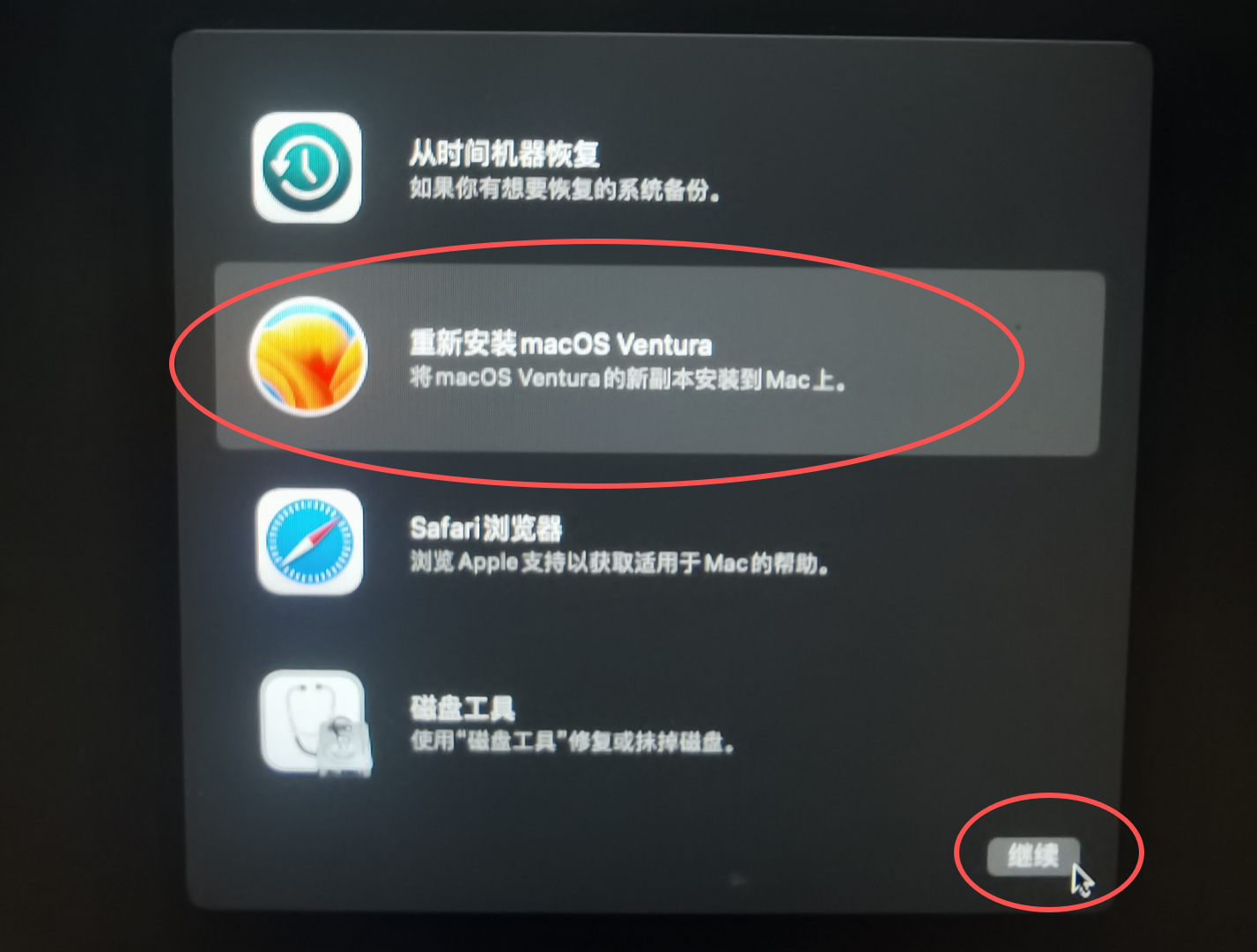
关闭磁盘工具,然后选择“重新安装MacOS……”